
There are three ways to add a signature to a PDF in SignNow: type it out, draw it with a mouse or finger, or upload an image of a handwritten signature. Each method takes just a few minutes and requires no installation, paper, printing, or scanning.
Key takeaways
- Signatures can be typed, drawn, or uploaded as an image inside SignNow’s editor. No printing or scanning is involved.
- All three methods can be legally binding in the US under the ESIGN Act and UETA. The signer must intend to sign and agree to sign electronically.
- A signature created once can be saved as a default under the account profile. Later documents skip signature creation entirely.
- Documents that need more than one signer can be routed in a set order. Signers can go one at a time or all at once.
- Uploading a transparent-background image avoids the blurry box that a low-quality signature scan often produces.
Before you begin
Adding a signature to a PDF in SignNow requires an account with an active free trial or paid plan and the PDF document. No plan upgrade or software install is required for a single signature. A SignNow account opens the editor where the PDF gets uploaded. The 7-day free trial requires no credit card. The file can sit on a computer, in Google Drive, or in another cloud folder. Signing is available in browsers and the iOS and Android apps, although the controls and some capabilities vary by platform. The whole process happens by signing a PDF online, without installing anything extra.
- A SignNow account (free trial or a paid plan)
- The PDF file, from a computer or a connected cloud drive
- A browser, or the SignNow mobile app for phone or tablet signing
Routing the same document to more than one signer needs a defined SignNow signing order. That’s available on the Business plan and up. Sending many separate documents out at once (bulk send) is a Business Premium feature. A single self-signed PDF needs neither plan feature. The mobile apps support offline signing for locally available documents. Changes are stored on the device and synchronized after the connection returns
See more information about SignNow pricing on the dedicated page.
Three ways to create a signature: which one to use
Typing a signature is fastest. Drawing one looks the most personal. Uploading an image keeps the exact same signature on every document. The right choice depends on how often the reader signs, and whether appearance matters.
Method | Best for | How it’s created | Reusable? |
Type | A single quick form | Enter a name, pick a script font | Yes, as a default |
Draw | A document that should look hand-signed | Mouse, trackpad, finger, or stylus | Yes, as a default |
Upload | A signature that must look identical every time | An image file of a handwritten signature | Yes, as a default |
A real estate agent processing a dozen listing forms in a week shows why uploading wins in that case. Drawing a fresh signature by hand on every disclosure and addendum adds up. Uploading one clean image once means every document carries the same mark, with no redrawing. This kind of volume is part of a broader shift away from printing and scanning. The global digital signature market growth was valued at $9.85 billion in 2025. It’s projected to reach $154.52 billion by 2034.

Step 1: Upload the PDF to SignNow
Uploading starts from the SignNow dashboard. The same PDF can come from a computer or a connected cloud drive.
- Go to signnow.com and log in, or start the free trial.
- From the dashboard, hover the SignNow upload and create button and choose where the PDF is coming from.
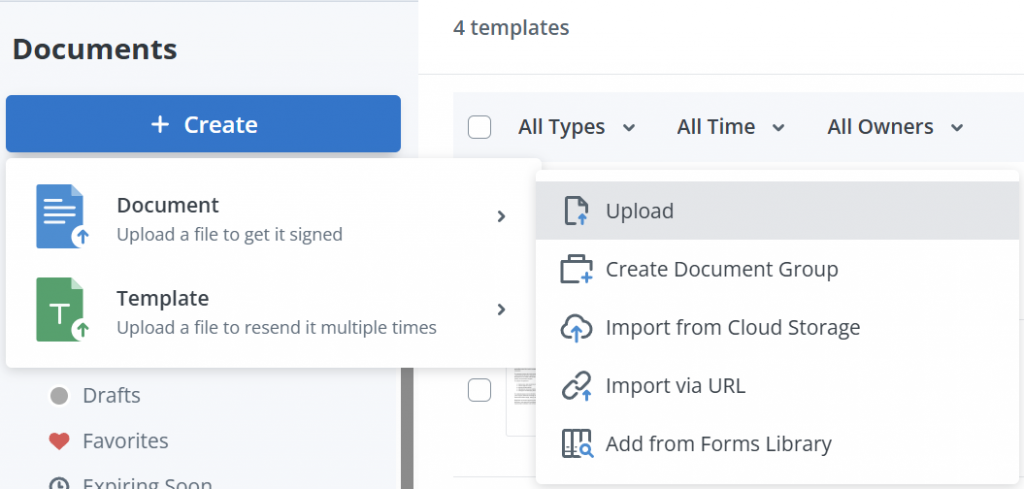
3. Select the file.
4. Confirm it appears in the document list on the dashboard.
5. Click Prepare and Send next to the document’s name to open the editor.
The upload source isn’t limited to a local drive. SignNow’s cloud storage integrations cover Google Drive, Dropbox, Box, and OneDrive. A PDF stored in any of those places can be pulled in for quick access, without downloading it first. The file doesn’t have to be a PDF, either. Word documents, HTML files, and Excel spreadsheets go through the same upload step. Supported non-PDF files can also be uploaded, but review the converted document before sending because complex formatting may shift.
This step works the same way for anyone, regardless of volume. An office manager preparing a batch of onboarding forms uses the exact same dashboard flow. So does a freelancer uploading one contract. Nothing about the upload step changes based on account size or plan. The same flow applies to other documents just as easily, whether it’s a contract or an intake form. It’s the same first move no matter what happens next in the editor.
Step 2: Create your signature: type, draw, or upload
Inside the editor, the My Signature selector lets a signer create their own signature. It offers exactly three creation tabs: type, draw, or upload.
- Drag a signature field onto the page, or click a field the editor auto-detected.
- Clicking the field opens the My Signature selector with three tabs.
- On the Type tab, enter a name and choose from a small set of script-style fonts.
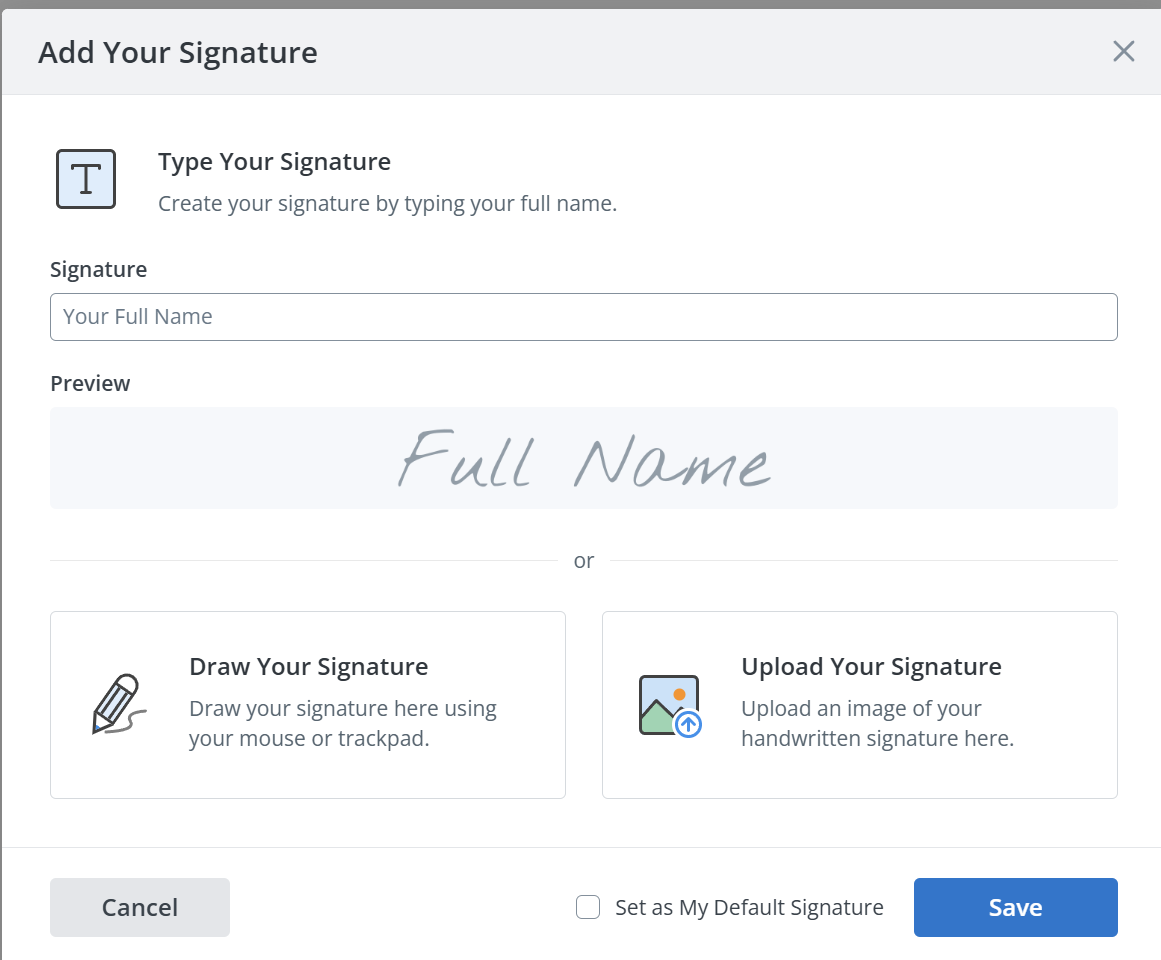
4. On the Draw tab, draw the signature freehand. Use a mouse, trackpad, or finger/stylus on a mobile device.
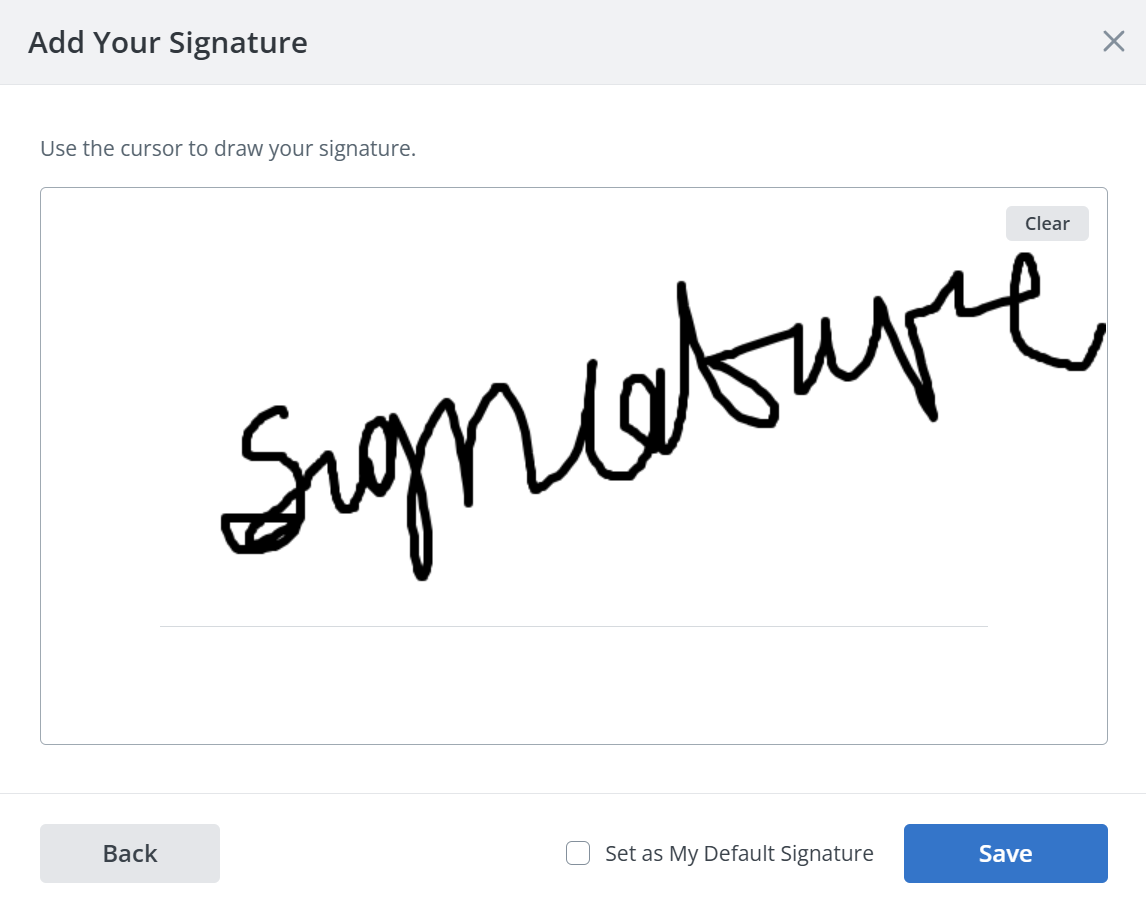
5. On the Upload tab, select an image file of a handwritten signature. A transparent-background PNG avoids the blurry box that a plain scan often produces.
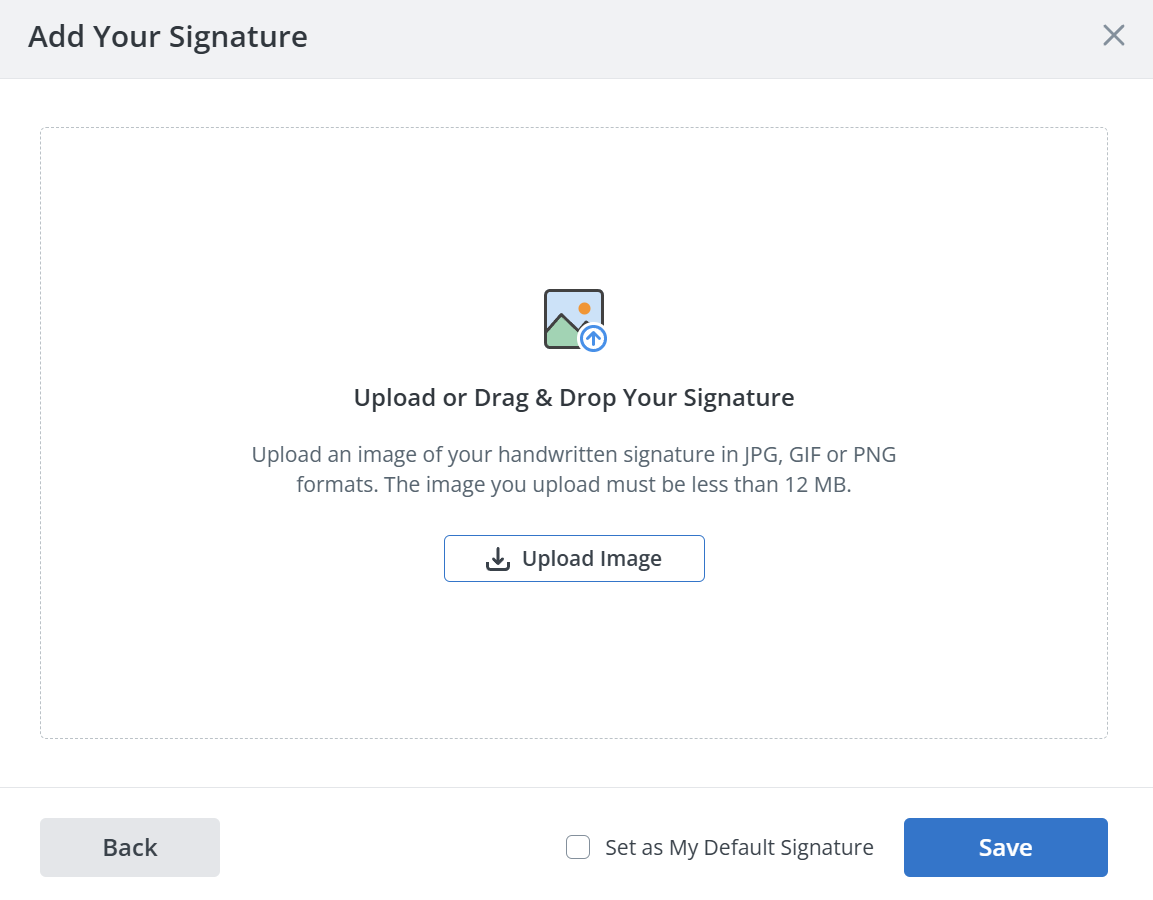
6. Click Save to confirm the chosen version.
The Draw tab is worth a closer look. It records the signature as vector strokes, not a flattened photo. The line stays crisp whether the document is viewed at full size or zoomed in on a phone. A blurry upload is an easy trap on a small tablet or phone screen. A drawn signature isn’t.
The Type tab solves a different problem. It’s the fastest of the three when appearance matters less than speed. There’s nothing to draw, and nothing to hunt for on a hard drive. Just a name to enter and a font to pick. It works much like an Add Text tool in a PDF editor, without a text box to drag first. Font choice is cosmetic, not legal. A plain sans-serif and an ornate script carry the same weight once the signer confirms it with Ok.
A use case of fast online PDF signing
A solo therapist signing intake PDF forms between telehealth sessions is a practical case for the Draw tab. There’s no time to print a form, sign it by hand, and rescan it between appointments. Drawing the signature on a tablet is faster. Placing it on a SignNow fillable fields takes about as long as reading the form itself. The editor supports up to 12 field types beyond the signature, including initials, date, and attachment fields. The rest of the intake form can be completed in the same pass.
The same three-tab selector applies to in-person signing too, such as a notary session or an office intake. Only the setting changes: the signer stands beside the device instead of opening a link from an email.
Step 3: Place the signature and save it for next time
Once a signature is confirmed, drag it onto the exact spot on the PDF. Saving it as a default means the next document skips signature creation entirely.
- Drag and drop the confirmed signature box to the exact location on the page, resizing it if needed.
- Add a date field next to it if the document requires one.
- To reuse the same signature later, open the user avatar menu in the top-right corner. Go to My Account, then User Profile.
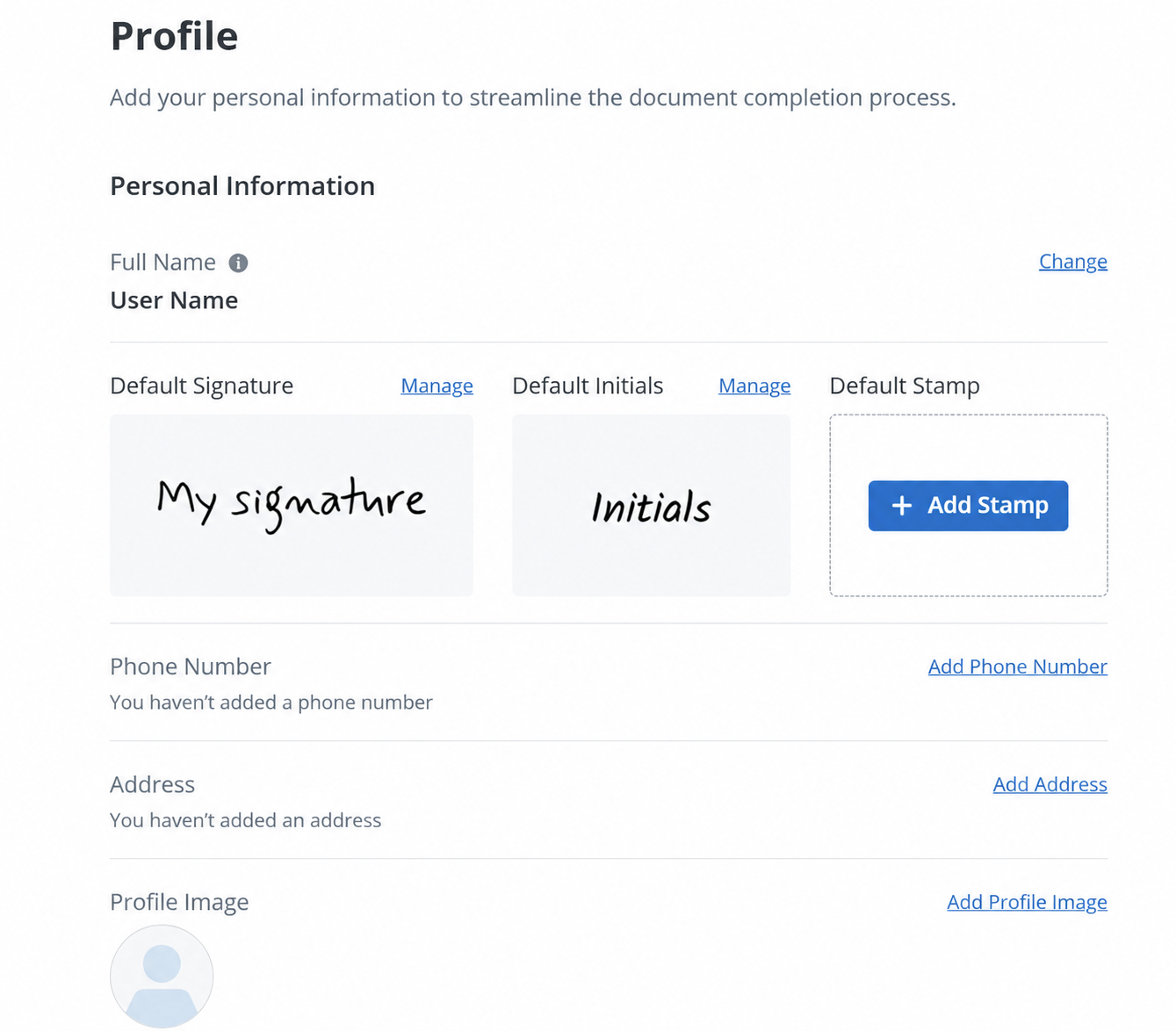
4. Under Default Signature(s), set the signature created in Step 2 as the default or create a new one. For a detailed guide on electronic signature creation, see our blog: How to create an electronic signature online.
That setting changes what a returning signer has to do. They only place a field. They don’t recreate a signature every time a new document comes in. The same profile area also supports a locked signing date. The date field fills in automatically and can’t be backdated or changed afterward.
Resizing deserves a second look. A signature box that’s too small often gets stretched by the editor and starts looking pixelated on the finished PDF. Dragging from a corner, rather than an edge, keeps the proportions intact. That matters more for an uploaded image than for a typed name, since a font scales cleanly at any size.
Every placement and confirmation is logged in the SignNow audit trail. It records names, email addresses, IP addresses, and timestamps for each action on a document. That’s backed by SignNow security and compliance certifications, including SOC 2 Type II and GDPR.
Step 4: Send the document or download the signed PDF
A self-signed PDF downloads immediately as a signed document. A document needing other signers goes out through the recipients panel with a defined signing order.
- To keep the signed file for personal records, click Download.
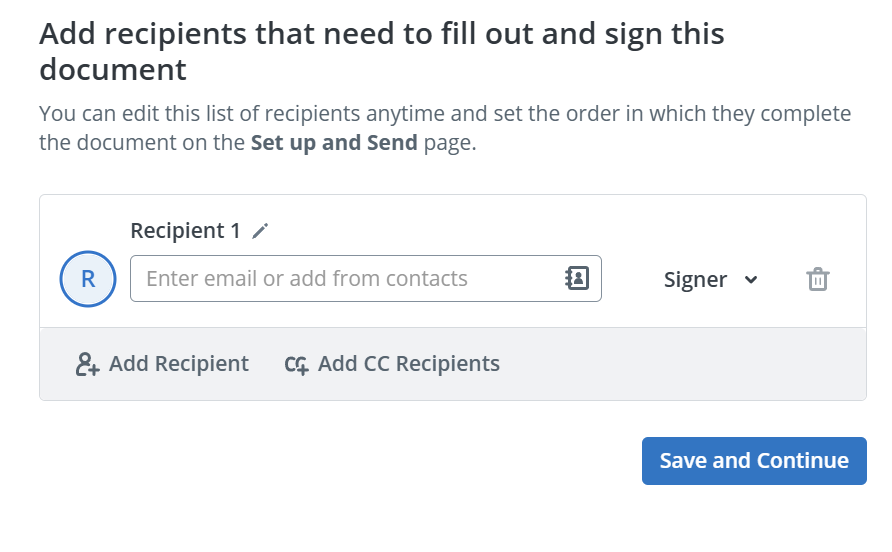
- If other signers are needed, open the recipients panel. Enter each signer’s contact details: name and email address, to send a signature request.
- Set the signing order to sequential (one signer at a time) or parallel (all signers at once).
- Click Continue to prepare eSignature request and send the document.
- Track completion status from the dashboard, where each document shows as pending or completed.
A sequential order fits a legal engagement letter well. The client signs first. Only after that signature is recorded does the supervising attorney receive the request. No one signs an agreement the other side hasn’t accepted yet. Requesting signatures from several people at once uses the same recipients panel, just with more names added. Sending many separate documents at once, instead of one at a time, uses SignNow bulk send. That’s available on the Business Premium plan. Some workflows go beyond a single signature, like sending a document to a whole team or setting up recurring templates. The broader free methods to sign PDFs guide on SignNow covers those cases in more depth.
A signer who isn’t ready to sign isn’t stuck without an option, either. Declining to sign is built into the recipient’s view, with a reason attached. The sender sees why a document stalled, instead of just seeing it sit unopened. Reminders can be set to go out automatically after a set number of days without a response. That matters most in a sequential order, where one slow signer holds up everyone listed after them.
Is a signature added this way legally binding?
Yes, electronic signatures are legally binding in the US. Under the ESIGN Act and UETA, a typed, drawn, or uploaded signature carries the same legal weight as a handwritten one. To be valid, the signature must demonstrate the signer’s intent and consent to sign electronically, and the signed record must be stored and reproducible.
The ESIGN Act requirements became federal law in 2000. UETA electronic transactions act followed at the state level. It has been applied since 1999, and 49 states now use it, along with DC and the US Virgin Islands. New York is the one state that relies on its own similar law instead. Both rest on the same four conditions. The signer intended to sign. The signer consented to do business electronically. The system ties the signature to the signed record. The record can be retained and reproduced later. None of the four conditions depends on which creation method produced the mark.
The EU applies a tiered framework instead. A typed or drawn signature on a PDF typically counts as a Simple Electronic Signature (SES) under eIDAS. That’s the broadest tier. A middle tier, the Advanced Electronic Signature (AES), adds a requirement. The signature must be uniquely linked to the signer. Any later change to the document must be detectable. An eIDAS qualified electronic signature (QES) sits at the top. It needs a certificate from a trust service provider on the EU’s official list. At that point, it carries the same legal weight as a handwritten signature across every EU member state.
Compliance requirements shift by industry as well as by jurisdiction. A healthcare form containing patient information falls under SignNow HIPAA compliance. That’s available once an organization signs a Business Associate Agreement, on top of the general ESIGN/UETA framework. Where a document is signed matters too. A US clinic and a UK clinic both sit under ESIGN/UETA-equivalent frameworks in their own jurisdictions. A form signed in the EU falls under eIDAS instead. The creation method is only half the legal question; where the signer is standing is the other half.
Common issues when adding a signature to a PDF
Most signing problems trace to one of four causes. A field lands in the wrong spot after auto-detection. An uploaded image is low quality. A signing link won’t open. Or there’s uncertainty about whether a typed name counts at all.
Issue: the signature field wasn’t detected on a scanned PDF. Auto-detection looks for form-field markers that a scanned, image-based PDF doesn’t have. The page is really just a picture of text, not searchable text. Add the field manually through the Fields panel instead, at the same spot a printed signature line would sit.
Issue: an uploaded signature looks blurry or sits inside a visible white box. This usually comes from a low-resolution scan with a solid white background. Use a transparent-background PNG, ideally at least 400 pixels wide, so only the stroke shows against the page.
Issue: a recipient says the signing link won’t open. This is typically a browser blocking a pop-up, an expired invite link, or a secure, password-protected link. Check the browser’s pop-up settings first, then resend the invite if it expired. A fresh invite resets the expiration window without recreating the whole document.
Issue: it isn’t clear whether a typed name actually counts as a signature. Under ESIGN and UETA, a typed name counts the same as a drawn or uploaded one. What matters is the person’s intent and consent to electronically sign; the creation method itself doesn’t change that outcome.
Teams that connect signNow to other business systems can avoid some of these issues altogether. SignNow API integration maps fields automatically instead of placing them by hand each time. That removes the manual field-placement step for high-volume senders, since field positions come from the connected system. That’s one of several advanced features available beyond the three basic signature methods.
Final thoughts
Typing, drawing, and uploading all count as a valid signature once intent and consent are on record. The choice comes down to speed versus consistency, not which method looks more official. Start a SignNow free trial to add a signature to a PDF document. It takes just a few clicks, with no installation required.
Key terms
- Audit trail. A timestamped record of every action taken on a document. It includes names, email addresses, and IP addresses, used to show who signed and when.
- Digital signature. A certificate-based signature type. It uses cryptographic keys to verify the signer’s identity and detect any change made after signing.
- eIDAS. The EU regulation defining three tiers of electronic signature: Simple, Advanced, and Qualified. Each tier adds identity-verification requirements.
- Electronic signature. Any data attached to a record and used by a signer to show agreement. That includes a typed name, a drawn mark, or an uploaded image.
- ESIGN Act. The 2000 US federal law giving electronic signatures the same legal standing as handwritten ones. It applies once the signer’s intent and consent are established.
Frequently asked questions
How do I add a signature to a PDF for free?
SignNow is one of the online tools where signing up costs nothing to start. Upload a PDF document, then create and place a signature in just a few clicks. No installation required beyond a browser.
Is it legal to type your name as a signature on a PDF?
Yes. A typed name carries the same legal weight as a drawn or uploaded signature. The script font chosen doesn’t change that: intent and consent are what count, not appearance.
What’s the easiest way to sign a PDF on a phone?
The SignNow mobile app supports offline signing. A document started without an internet connection still finishes once the signal returns. Drawing tends to be fastest on a touchscreen.
How do I create a signature I can reuse on every PDF?
Save it once as the default under My Account, User Profile. After that, a document can be digitally signed in seconds, with no signature to recreate.
Can I add a signature to a scanned PDF?
Yes, though auto-detection often misses form fields on a scanned, image-based page. Placing the signature field manually through the Fields panel solves it.
Sources
- Before you begin
- Three ways to create a signature: which one to use
- Step 1: Upload the PDF to SignNow
- Step 2: Create your signature: type, draw, or upload
- Step 3: Place the signature and save it for next time
- Step 4: Send the document or download the signed PDF
- Is a signature added this way legally binding?
- Common issues when adding a signature to a PDF
- Final thoughts
- Key terms
- Frequently asked questions
- Sources