
Quick answer: To sign a PDF on Android, open the file in Google Drive and draw your signature with the annotation pen for a free, simple signature, or open it in an eSignature app such as SignNow, place a signature field, and save a signed copy that carries an audit trail. Android has no system-wide signing tool, so the app you choose decides whether you get a basic marked-up PDF or a more formal, traceable eSignature.
The difference matters more than it looks, especially if you sign documents from your phone for work, client visits, field approvals, clinic forms, sales paperwork, or everyday forms on a tablet. Drawing in Google Drive is like writing your name on a photocopy: the ink is there, but nothing records who held the pen or when. An eSignature app works more like a signed register at a front desk, where each signature is logged with a time and an identity. This guide covers both methods, plus signing Gmail attachments, sending a PDF to other signers, signing with no connection, and the legal difference between electronic signatures and digital signatures.
TL;DR
- Google Drive for Android can add a freehand signature to a PDF on Android 6.0 or later, with no extra app.
- A Drive annotation does not record signer identity or create an audit trail, so it suits informal paperwork only.
- The SignNow Android app imports PDFs from your device, gallery, camera, or cloud storage and adds signature, initials, text, date, and checkbox fields.
- You can draw, type, or upload a signature in SignNow and reuse the saved version on later documents.
- SignNow lets you sign and collect signatures offline; changes sync once the phone reconnects.
- Electronic signatures created on a phone have legal effect under the US ESIGN Act and the EU eIDAS Regulation.
Before you begin: what you need on your Android phone
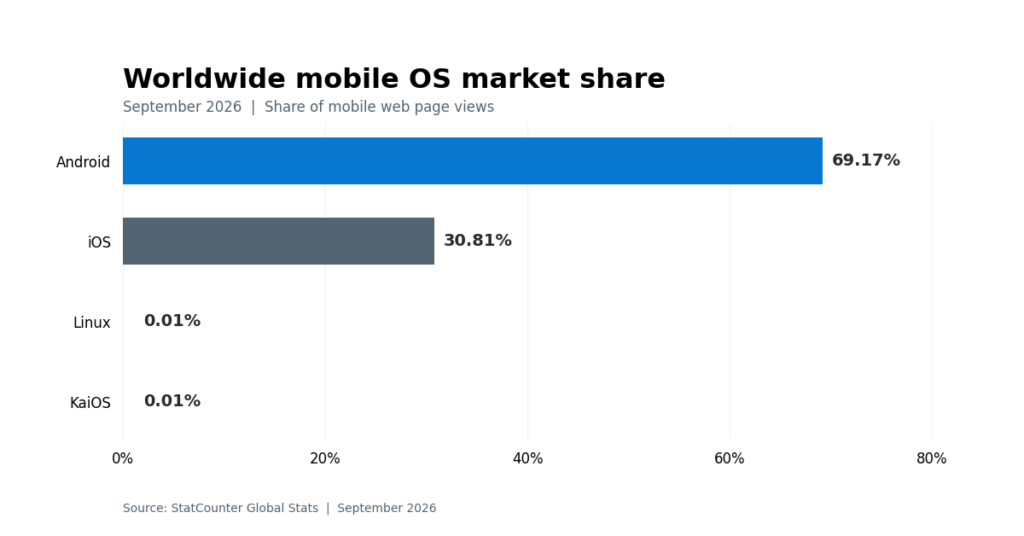
You need a PDF, a signing app, and a few minutes of screen time; nothing has to be printed or scanned. Android ran on 69.17% of mobile devices worldwide in September 2026, according to StatCounter, so most document requests now land on an Android screen first.
Check these items before you start:
- Android version: Google Drive annotation requires Android 6.0 Marshmallow or later.
- The PDF itself: saved on the phone, attached to an email, or stored in Google Drive, Dropbox, OneDrive, Box, or Egnyte.
- A signing app: Google Drive is preinstalled on most Android phones. SignNow mobile apps are available on Google Play.
- An account for legally tracked signing: mobile apps for iOS and Android are included in every paid SignNow plan, starting with Business at $8 per user per month billed annually, and a 7-day free trial is available on the SignNow pricing plans page.
- A stylus (optional): a finger works, but a stylus gives a cleaner drawn signature on a small screen.
Method 1: Sign a PDF on Android with Google Drive
Google Drive lets you draw directly on a PDF, which is the fastest free way to mark a document on Android. Use it for low-stakes forms, such as a school permission slip or an internal checklist.
- Open the Drive app and tap the PDF to open it in preview mode.
- Tap the annotate button in the bottom-right corner of the screen to open Drive’s markup tools.
- Choose the pen to add signatures, then set the brush size and color; depending on the file and device, the toolbar may also show comments, highlights, shapes, underlines, or squiggly lines.
- Draw your signature in the signature area. Use undo or the eraser to fix a stroke.
- Save over the original or save a new copy under a different name, which keeps the original unmarked.
Google documents the full toolbar in its help article on Google Drive annotation tools, and these markup tools can be used to add signatures. The limits are worth knowing before you send the file back. The drawing is a layer of strokes on a page, not a signature field. Drive does not verify who drew it, attach a timestamp to the signature, or produce a signing certificate. If the recipient asks for an audit trail, or the document is a lease, an offer letter, or a client contract, use an eSignature app instead.
Method 2: How to sign a PDF on Android with the SignNow app
The SignNow app turns a PDF into a signable document with real fields, a reusable signature, and a record of each signing action. SignNow already publishes a short Android signing overview; the steps below follow the app’s current interface in more detail.
Step 1: Install the app and log in
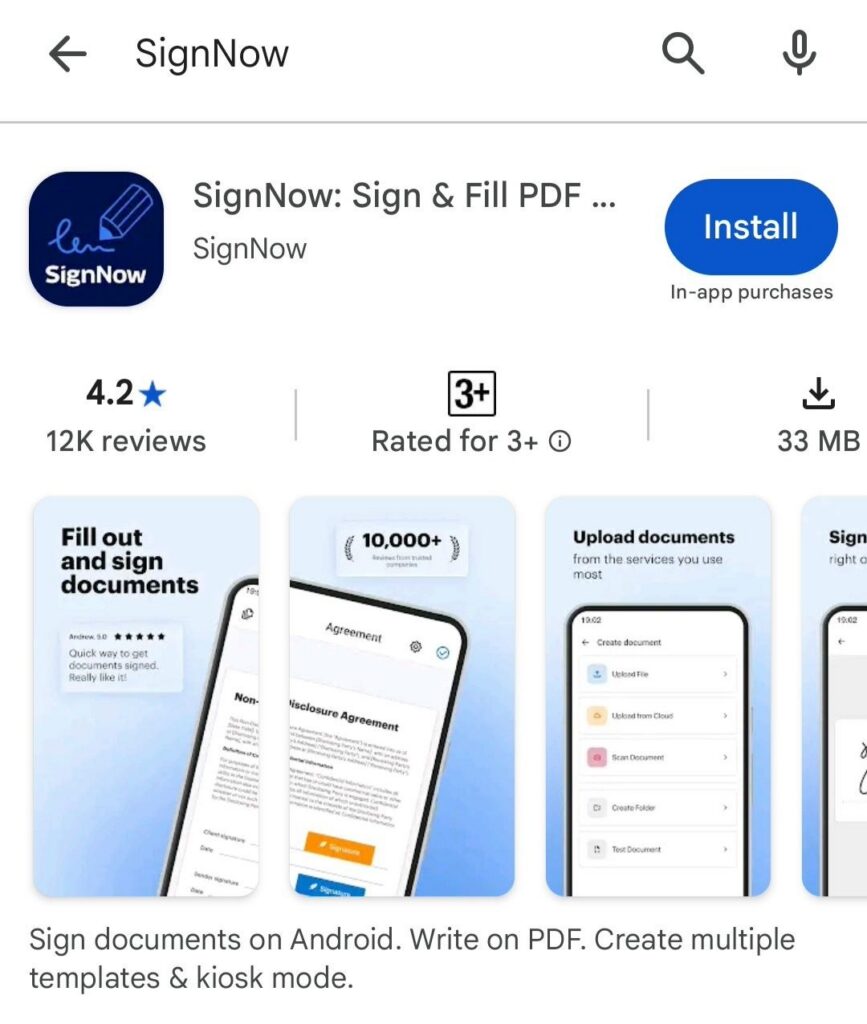
- Open Google Play and search for SignNow.
- Tap Install and wait for the download to finish.
- Open the app and log in with your email, Google, or Facebook credentials.
Step 2: Import the PDF
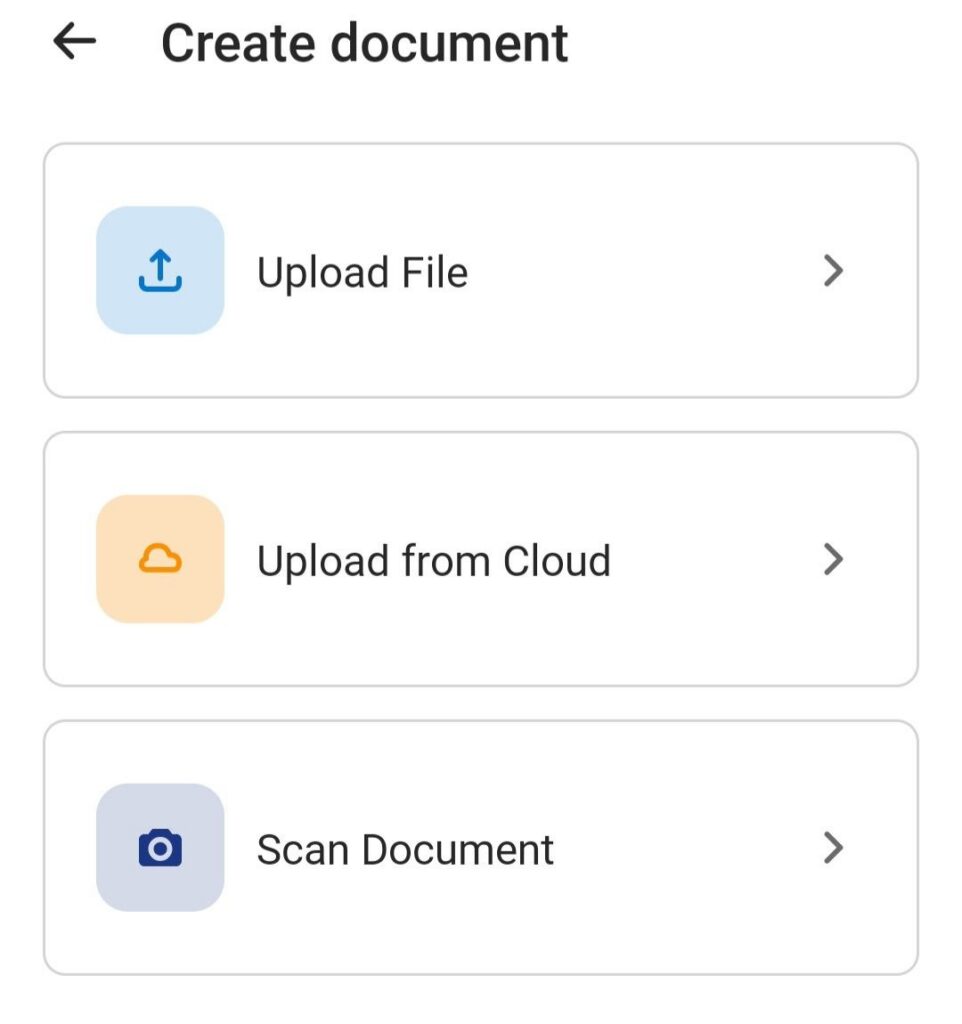
- Tap the plus icon on the home screen to open the upload menu and import a PDF file.
- Choose Upload File for a file saved on your device.
- Choose Upload from Cloud to pull a file from Google Drive, Dropbox, OneDrive, or Box. Teams that already store contracts in Drive can connect the SignNow Google Drive integration and open files without downloading them first.
- Choose Scan Document to photograph a paper document and convert it into a signable PDF.
Step 3: Open the document in the editor
- The uploaded PDF document will open in the editor.
- Tap the spot on the page where the signature belongs.
- Add any other fields the form needs, including a text box where needed, alongside initials, checkboxes, or a date.
- Drag a field to move it, resize it, duplicate it, or edit it after placement.
You can scroll through multiple pages of the PDF document and place fields wherever signatures are required.
Step 4: Create and place your signature
- Select the Signature tool and tap the signature field.
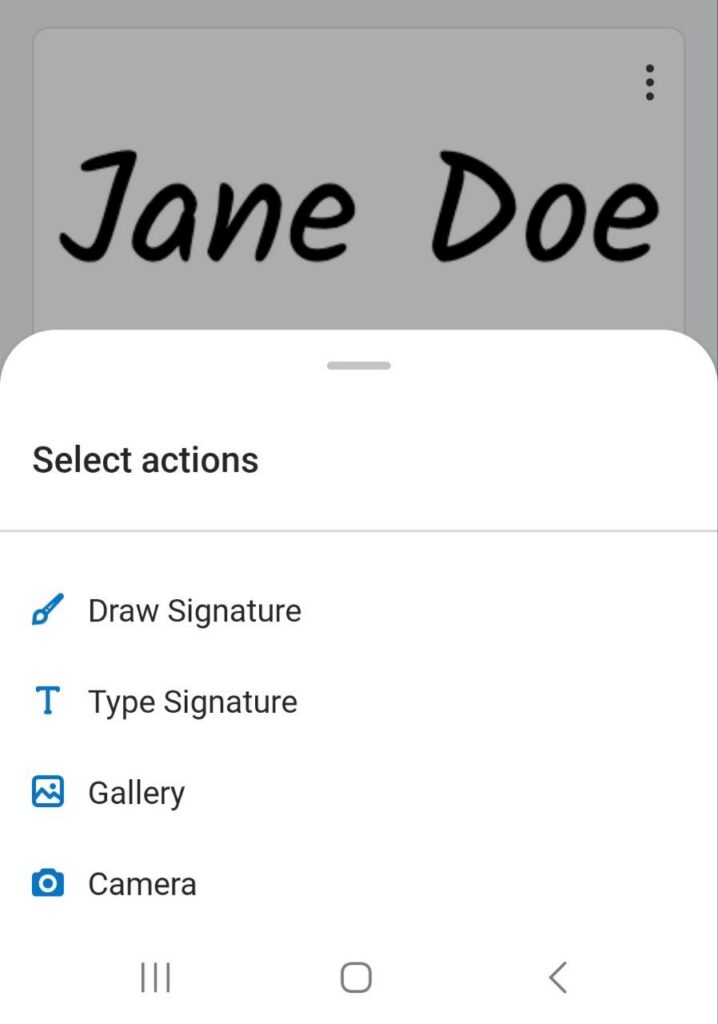
- Create a new signature by drawing with a finger or stylus, typing your name, or uploading an image of your handwritten signature.
- Tap Done. The app saves the signature for future documents.
Think of a saved signature as a stamp you only carve once. The next time a PDF arrives, you tap the field and the stamp is already there, so you are not redrawing your name on a 6-inch screen each time. Behind that stamp, the SignNow audit trail records the signing action so the other party can see when the document was signed.
To manage saved signatures, open My Signatures from your account settings. There, you can delete a saved signature and make another if you no longer want to reuse the old one. If you prefer to draw a fresh signature every time, go to Settings, select Signing Sessions, and switch off Use Saved Signatures. SignNow explains each option in its help article on saved signatures in mobile app.
- Review every page for empty fields.
- Tap the checkmark to finalize the document.
- Export the signed PDF to cloud storage, share it to another app, or email it to the other party.
Sign a PDF attachment from Gmail on Android
A PDF received as an email attachment can go straight into a signing app without a trip to the desktop.
- Open the email in the Gmail app and tap the PDF attachment to preview it.
- Tap the download icon to save the file locally to your phone before import.
- In SignNow, tap the plus icon, choose Upload from Device, and select the saved file.
- Sign, finalize, and reply to the sender with the signed copy attached.
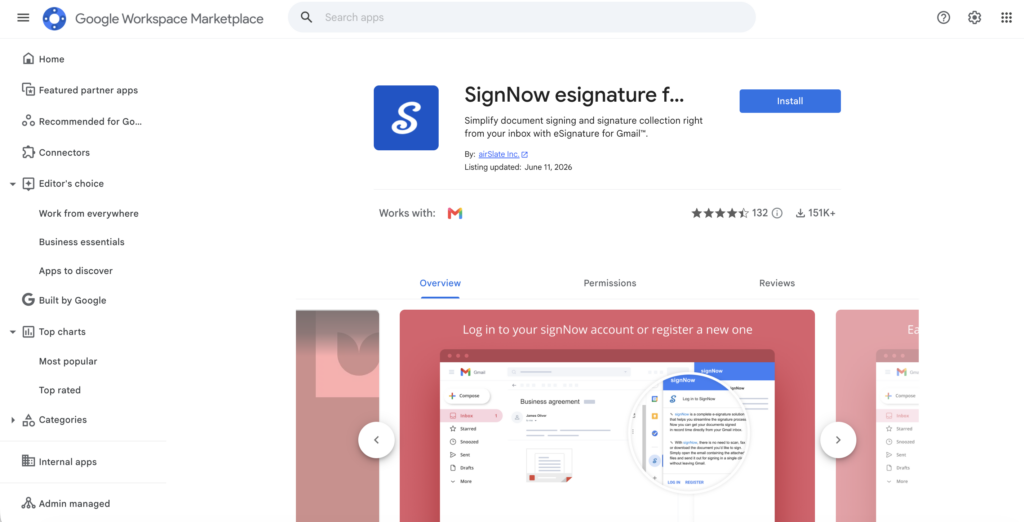
Teams that handle many emailed contracts can also install the SignNow add-on for Gmail, which lets you sign an attachment or send it for signature without leaving the inbox, helpful when the document starts in email rather than in a browser or cloud app.
Send a PDF for others to sign from your phone
The SignNow app can also collect signatures on your mobile device when you’re away from a computer, so the person who needs a contract signed does not have to wait until they are back at a desk.
Who uses this most: field staff, agents, and clinic coordinators who meet clients away from the office. What they do: add one or more signers, assign each a role, and set the signing order. Where: in person on the same phone or tablet, or remotely by email. This is especially useful for agreements and other important documents that need to be signed on the spot.
When: at the moment the deal or intake happens, rather than at the end of the day.
Why: a document signed on the spot does not stall in someone’s inbox.
How: open the document in the editor, add fields for each role, and send the invite or hand the device to the signer. When all parties have signed, the app can email the completed document to everyone.
A real estate agent at a showing can open a lease template, fill in the tenant’s details, and pass the phone across the table for signature. A clinic front desk can run the same flow on a tablet using Kiosk Mode in the app’s sidebar, which is built for in-person signing on mobile. Every paid plan also includes sending documents for signature by SMS, useful when the signer has a phone but no email on file, and these workflows help users sign important documents and send eSignatures from the field.
Sign without internet or from a paper copy
SignNow lets you sign and collect signatures offline, then syncs the changes once the phone is back online. That covers job sites, basements, rural properties, and flights.
Paper is not a blocker either. The Camera option in the upload menu photographs a printed page and converts it into a signable PDF, so a form handed to you on a clipboard can be signed and returned digitally.
“I used to use DocuSign, but thanks to SignNow, I can process and execute all of these documents online with 100% compliance and built-in security. Whether I’m initiating templates on my mobile devices or working in offline and limited wi-fi mode, I can get forms back to their necessary parties in an efficient and expeditious manner.”
Tim Martin, Founder, Martin Properties
Electronic vs. digital signature on Android: which one you need
For most business documents, an electronic signature from a compliant app is enough; on Android, these signatures are often enough and can be legally binding when the signer intends to sign, and the parties agree to transact electronically. A certificate-based signature is needed only where a specific law or counterparty requires it.
In the United States, the ESIGN Act, 15 U.S.C. 7001, states that a signature or contract “may not be denied legal effect, validity, or enforceability solely because it is in electronic form.” In the European Union, eIDAS Article 25 says an electronic signature “shall not be denied legal effect and admissibility as evidence in legal proceedings,” and gives a qualified electronic signature the same legal effect as a handwritten one. Some Android tools, such as Xodo Sign, support legally binding e-signatures and cite compliance with laws such as the ESIGN Act and eIDAS.
| Signature type | What it is on Android | Records who signed and when | Typical use |
| Drawn annotation | Pen strokes added in a PDF viewer such as Google Drive | No | Informal forms, internal notes |
| Electronic signature (SES) | Signature placed in an eSignature app with an audit trail for eSign workflows | Yes | Contracts, HR forms, leases, consent forms |
| Qualified electronic signature (QES) | Certificate-based signature issued through a qualified trust service | Yes, with certified identity | EU transactions that legally require it |
SignNow supports ESIGN- and UETA-compliant electronic signatures and eIDAS simple electronic signatures on all plans, while digital signatures are certificate-based authentication tools used for stronger identity and file-integrity needs. The platform holds SOC 2 Type II certification, is GDPR compliant, and supports HIPAA compliance once an organization signs a Business Associate Agreement, as listed on the SignNow security and compliance page.
Troubleshooting PDF signing on Android
Issue: The annotate button is missing in Google Drive. Cause: an older Android version or an outdated Drive app. Fix: Update Drive from Google Play and confirm the phone runs Android 6.0 or later. If it still does not appear, try a dedicated signer such as Adobe Acrobat Reader, which is widely used for signing PDFs on Android devices.
Issue: The PDF opens, but no field accepts a signature. Cause: The file is a flat scan or a protected PDF. Fix: Open it in an eSignature app, tap Open in Editor, and add your own signature field; ask the sender for an unlocked copy if editing is blocked. You can also open the file in Dropbox if you prefer to sign from your Android phone there, or use Adobe if another app handles the file better.
Issue: The saved signature does not appear. Cause: The Use Saved Signatures toggle is off, or the app needs an update. Fix: Switch the toggle on under Settings > Signing Sessions, update the app, and restart it. If needed, try Adobe Acrobat after the restart to check whether the problem is app-specific.
Issue: A document signed offline has not reached the recipient. Cause: The phone has not reconnected since signing. Fix: Connect to Wi-Fi or mobile data and keep the app open until the document syncs. For sensitive documents, use a passcode or biometric lock and avoid public or shared devices while signed files are stored locally.
Disclaimer: The information contained in this blog post is provided for general informational purposes only and does not constitute formal legal advice.
Final thoughts
Signing a PDF on Android is simple, whether you need to approve a form, complete a contract, or collect a client’s signature while away from your desk.
For basic documents, Google Drive offers a free way to draw a signature directly on a PDF. However, if you need an audit trail, reusable signatures, or the ability to request signatures from others, a dedicated eSignature app like SignNow is a better fit.
With SignNow for Android, you can sign PDFs, add fillable fields, collect signatures in person or remotely, and work offline when an internet connection isn’t available. Your changes sync when you reconnect, helping you keep document workflows moving wherever you work.
Ready to sign PDFs on Android without printing or scanning? Start your free SignNow trial and manage your documents directly from your phone or tablet.
Glossary
- Audit trail: a log of actions taken on a document, such as viewing and signing, with timestamps.
- Electronic signature: any electronic sound, symbol, or process attached to a record and adopted by a person with intent to sign.
- eIDAS: EU Regulation No 910/2014, which sets the legal framework for electronic signatures and trust services in the European Union.
- Kiosk Mode: a SignNow mobile app mode, available on phones and tablets, for collecting signatures in person on a shared device.
- Qualified electronic signature (QES): an eIDAS signature created with a qualified certificate that has the legal effect of a handwritten signature in the EU.
FAQ
1. Can I sign a PDF on Android for free?
Yes. Google Drive lets you draw a signature on a PDF at no cost on Android 6.0 or later. The result has no audit trail, so for contracts, use an eSignature app; SignNow offers a 7-day free trial.
2. Is a signature drawn in Google Drive legally binding?
It may be accepted for informal documents, but it offers weak evidence because Drive does not record who drew it or when. An eSignature app that logs each signing action gives the other party stronger proof under laws such as the ESIGN Act.
3. How do I put a digital signature on a PDF on an Android phone?
Open the PDF in an eSignature app on your Android device to sign PDF documents, add a signature field, and draw, type, or upload your signature. If a counterparty requires a certificate-based qualified signature, confirm that requirement first, because it is issued through a qualified trust service. That differs from the standard eSignatures used in most mobile apps.
4. Can I sign a PDF on Android without internet?
Yes, with an app that supports offline mode. In SignNow, you can sign and collect signatures offline, and the changes sync when the phone reconnects.
5. How do I reuse my signature on Android?
In SignNow, a signature is saved after you tap Done the first time. Manage it under My Signatures, and control automatic reuse with the Use Saved Signatures toggle in Signing Sessions settings.
6. Can I sign a PDF on an Android tablet?
Yes. The SignNow app runs on Android phones and tablets, and its sidebar includes Kiosk Mode for collecting signatures in person on a shared device. The same task can also be done on an iPhone, though the exact steps depend on the app or built-in Markup tool you use there.
Sources
- Mobile operating system market share worldwide, StatCounter Global Stats, 2026
- Annotate PDFs with a stylus or freehand on Android, Google Drive Help
- 15 U.S.C. 7001, General rule of validity, U.S. Government Publishing Office
- Regulation (EU) No 910/2014 (eIDAS), Article 25
- New Android App Features, SignNow Help
- Before you begin: what you need on your Android phone
- Method 1: Sign a PDF on Android with Google Drive
- Method 2: How to sign a PDF on Android with the SignNow app
- Sign a PDF attachment from Gmail on Android
- Send a PDF for others to sign from your phone
- Sign without internet or from a paper copy
- Electronic vs. digital signature on Android: which one you need
- Troubleshooting PDF signing on Android
- Final thoughts
- Glossary
- FAQ
- Sources