Importer Des Documents Depuis Une Bibliothèque De Photos Pour Créer Un Document à Signer

Prenez une photo d'un document et utilisez-la pour l'éditer et le signer. Importez des documents depuis une bibliothèque de photos dans airSlate SignNow et convertissez-les en PDF.

Solution eSignature primée

What it means to import documents from a photo library to create a document

Importing documents from a photo library to create a document is the process of selecting photographs or screenshots from a device gallery and converting them into a unified electronic file suitable for document workflows. This typically includes cropping, rotating, applying image enhancement, optionally running OCR to extract text, assembling multiple images into a single PDF, and applying metadata or template mapping so the file can be routed, signed, or stored. The workflow is commonly used on mobile devices but also supported on tablets and desktop systems through uploads.

Why import photos to build documents

Converting photos into formal documents streamlines capture of on-site information, reduces manual rekeying, and gets agreements into workflows faster while preserving original images and metadata for audit and storage.

Why import photos to build documents

Common challenges when importing from a photo library

  • Variable image quality can reduce OCR accuracy and require manual correction after import.
  • Mixed orientations and perspective distortion may need manual rotation and cropping before assembling.
  • Large image file sizes increase upload time and storage consumption when creating multi-page documents.
  • Privacy and permissions must be handled carefully when photos contain sensitive personal data.

Representative user profiles

Office Manager

An office manager frequently converts scanned receipts and signed paper forms into consolidated PDFs, applies standardized templates, and routes documents to finance and HR with metadata for efficient retrieval and audit readiness.

Field Agent

A field agent captures multiple photos at client sites, compiles them into a single document, annotates or crops images as needed, and invokes an eSignature workflow to secure approvals while on location.

Who commonly uses photo-to-document import workflows

Businesses and professionals who capture information on-site use photo imports to create document-ready files for signing, storage, or recordkeeping.

  • Real estate agents capturing signed disclosures and property photos for contracts.
  • Field service technicians documenting completed work with photos and customer signatures.
  • Healthcare administrators digitizing patient forms and intake records from scanned images.

These workflows reduce paperwork handoffs, shorten turnaround times, and make documents available for secure processing and compliance checks.

Important tools that improve photo-to-document quality

These built-in features reduce manual work and improve the usability of documents created from images.

Multi-page PDF

Combine multiple images into a single PDF so documents retain page order, are easier to distribute, and meet common archival and signature workflow requirements.

Optical Character Recognition

Extract text from photos to populate form fields automatically, enabling searchability and reducing manual data entry across document workflows.

Auto-crop and de-skew

Automatically detect document edges, crop the image, and correct perspective to produce legible, professional-looking pages from casual photos.

Image enhancement

Adjust brightness, contrast, and noise reduction to improve scanned text readability and OCR performance when originals are imperfect.

Template mapping

Map extracted fields or image sections to predefined templates so imported content populates the right form fields for faster processing.

Metadata extraction

Capture timestamps, geolocation, and device metadata to support audit trails and verify when and where images were taken.

soyez prêt à en obtenir plus

Choisissez une meilleure solution

Core integrations that support photo-based document creation

Integration with common storage and productivity tools simplifies importing photos and pushing resulting documents into established workflows.

Google Drive

Import images directly from a Google Drive folder or save converted PDFs back to Drive, enabling centralized storage and easy sharing with collaborators and automated backup policies.

CRM connectors

Link imported documents to CRM records so photos become part of customer files and transaction histories, ensuring documents are associated with the correct contact and deal stages.

Dropbox

Pull photos from Dropbox and export finished documents to folders or team spaces for coordinated access and archival storage in existing file hierarchies.

Camera import

Use device camera integration to capture images directly into the document workflow, reducing the need to move files between apps and minimizing data loss risk.

How the import-to-document workflow operates

The import flow converts device images into structured document files using a sequence of capture, processing, and export steps.

  • Capture: Select or photograph images from the device gallery
  • Enhance: Apply auto-crop, exposure correction, and de-skew
  • Convert: Run OCR and assemble multi-page PDF format
  • Route: Attach to templates, set signers, and send
Collecter les signatures
24x
plus rapide
Réduire les coûts de
$30
par document
Économisez jusqu'à
40h
par employé / mois

Step-by-step: create a document from photos

Follow these core steps to import images and produce a document ready for signing or storage.

  • 01
    Select photos: Open photo library and choose images to include
  • 02
    Adjust images: Crop, rotate, and apply enhancements as needed
  • 03
    Assemble pages: Order images and merge into a single PDF file
  • 04
    Save and export: Apply metadata and save document for workflow use

Manage audit trails after creating a document from photos

Maintain comprehensive records for documents created from photo imports by enabling tracking and preserving metadata throughout the workflow.

01

Enable tracking:

Turn on detailed event logs
02

Capture metadata:

Include timestamp and device info
03

Signer verification:

Record authentication method used
04

Lock document:

Apply tamper-evident seals
05

Export logs:

Download audit trail files
06

Secure storage:

Archive with access controls
soyez prêt à en obtenir plus

Pourquoi choisir airSlate SignNow

  • Essai gratuit de 7 jours. Choisissez le forfait dont vous avez besoin et essayez-le sans risque.
  • Tarification honnête pour des forfaits complets. airSlate SignNow propose des abonnements sans frais supplémentaires ni frais cachés lors du renouvellement.
  • Sécurité de niveau entreprise. airSlate SignNow vous aide à respecter les normes de sécurité mondiales.
illustrations signature

Recommended workflow settings for photo imports

Configure these settings to optimize the conversion of photo library images into documents and to align with team processes.

Setting Name Configuration
Auto-convert photos Enabled
Merge pages mode Sequential PDF
OCR language English US
Reminder Frequency 48 hours
Retention period 7 years

Platform support and requirements

Supported platforms typically include iOS and Android mobile apps, tablet interfaces, and web-based uploads from desktop browsers.

  • Mobile OS: iOS 13+ and Android 8+
  • Browser support: Current Chrome, Safari, Edge
  • Storage space: Sufficient free disk for uploads

Ensure devices have current OS versions, app updates, and stable network connectivity to avoid interrupted uploads and to maintain secure transmission of images into document workflows.

Security and authentication components

Encryption at rest: AES-256 encrypted storage
Encryption in transit: TLS 1.2+ for uploads
Access controls: Role-based permissions
Authentication: Two-factor options supported
Audit logging: Immutable event records
Document locking: Tamper-evident seals

Industry examples of photo-library imports

Practical examples show how importing images into documents speeds approval flows across different industries and use cases.

Real Estate

An agent captures signed disclosures and inspection photos on-site to assemble a single transaction PDF

  • Auto-crop and merge tools convert photos into sequential pages
  • The combined file is easier to review and share with escrow partners

Resulting in faster closings and clearer records for audits

Healthcare

Clinic staff photograph completed intake forms and insurance cards to attach to a patient record

  • OCR extracts patient name and policy details quickly
  • Text extraction reduces manual entry and billing errors

Leading to faster claims processing and improved patient record completeness

Best practices for accurate photo-to-document conversion

Follow these practical steps to produce reliable documents when importing images from a photo library.

Capture images in good lighting conditions
Use even, indirect lighting and avoid glare to maximize legibility; consistent lighting improves OCR accuracy and reduces manual correction time after import.
Keep documents flat and aligned during photography
Place pages on a flat surface and align the camera perpendicular to the page to reduce perspective distortion and improve automatic cropping and de-skewing results.
Verify extracted data before routing
Check OCR-extracted fields and mapped template values for accuracy to prevent errors in downstream processes like billing, compliance filing, or signature capture.
Apply consistent file naming and metadata
Use standardized naming conventions and include case or client identifiers so documents are searchable, auditable, and correctly associated with records.

FAQs About importing documents from a photo library to create a document

Common questions address image quality, OCR reliability, compliance, and troubleshooting steps for failed imports.

Feature availability across eSignature providers for photo import workflows

Compare core capabilities relevant to converting photo library images into documents and processing them through signature workflows.

Criteria signNow (Recommended) DocuSign Adobe Sign
Mobile app
Auto-crop and de-skew
Built-in OCR
HIPAA compliance option Enterprise only Enterprise only Enterprise only
soyez prêt à en obtenir plus

Obtenez des signatures juridiquement contraignantes dès maintenant !

Regulatory risks and compliance penalties

HIPAA fines: Significant monetary penalties
FERPA violations: Institutional sanctions possible
Invalid signatures: Contract unenforceability risks
Data breach: Notification and fines
Retention failures: Compliance audit findings
Privacy noncompliance: Civil penalties likely

Pricing and plan comparisons for photo import and eSignature features

General pricing and plan characteristics vary; this table summarizes free tier availability, typical starting prices, compliance options, API access, and bulk send support across providers.

Pricing Plan Name signNow (Featured) DocuSign Adobe Sign PandaDoc HelloSign
Free tier availability Free trial with basic features for new users Free trial; no permanent free tier Trial available; no free tier Free eSign plan with basic limits Free plan with limited monthly signature quota
Starting price estimate Business plan starts around $8 per user per month Individual plans start near $10 per user monthly Plans typically begin around $14 per user monthly Plans from approximately $19 per user monthly Starter plans around $15 per user monthly
HIPAA-compliant option Available on enterprise plans with BAAs Enterprise and select plans support HIPAA Available via enterprise agreements Available on enterprise plans Available on Business plans with agreements
API access availability API available with developer keys and plans Robust API with extensive SDKs API access included for business tiers API available on paid plans API offered with business subscriptions
Bulk Send capability Bulk Send supported on paid plans Bulk sending available on business plans Bulk send available for business users Bulk send available on specific tiers Bulk send available on advanced plans

Comment télécharger une image de document depuis la galerie vers airSlate SignNow

Déplacez facilement une photo de document depuis le stockage de votre appareil vers votre compte airSlate SignNow. Le document importé peut être rapidement modifié, transformé en un formulaire remplissable, et envoyé pour une signature électronique directement depuis votre smartphone ou tablette.

Commencez d’un simple tap

Appuyez sur l’icône plus dans le coin inférieur droit de l’écran d’accueil de l’application mobile airSlate SignNow pour faire apparaître le menu de téléchargement.
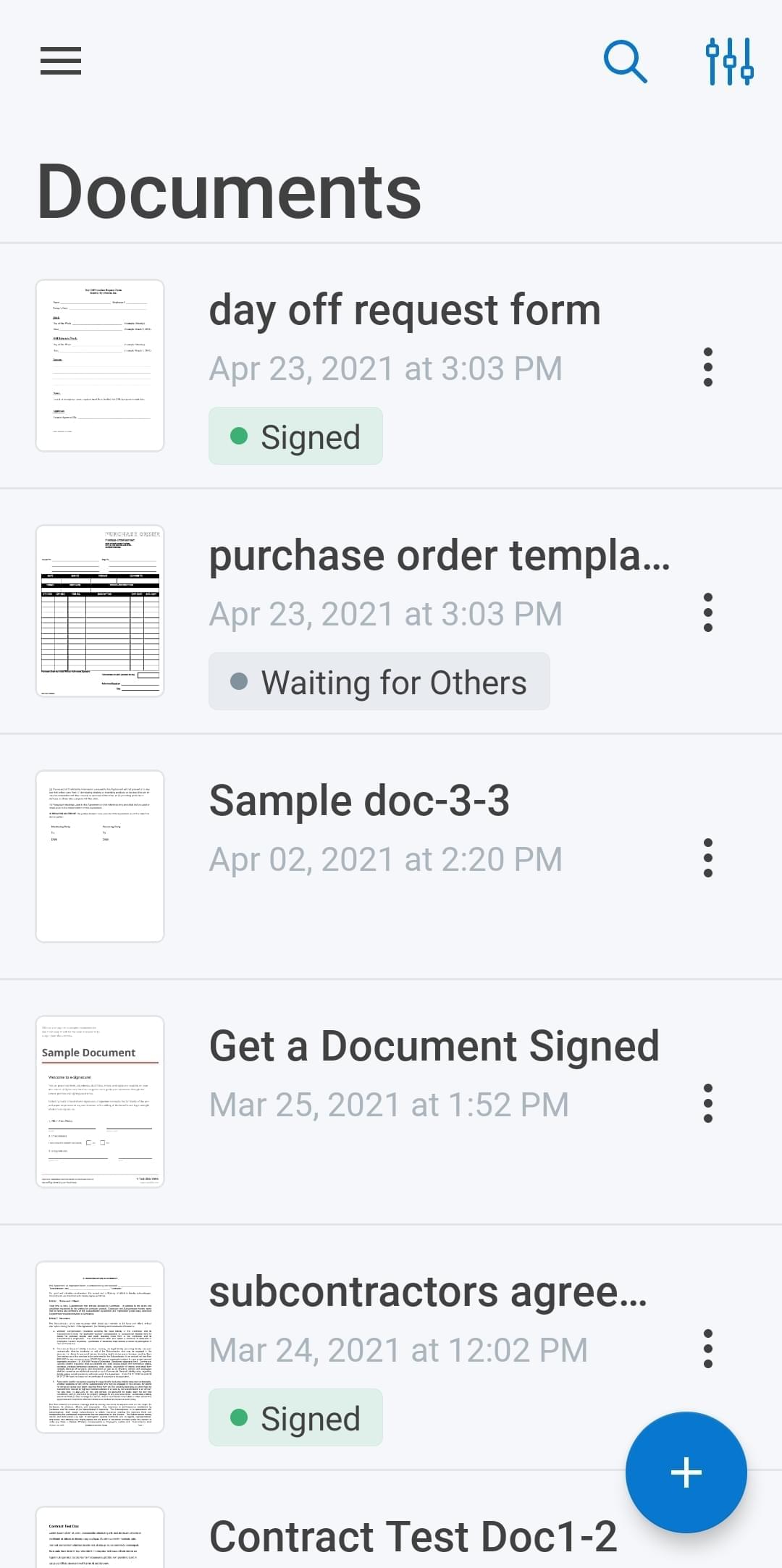
illustration-guidée-remplissage

Sélectionnez Galerie dans le menu et parcourez votre appareil pour trouver l’image du document dont vous avez besoin.
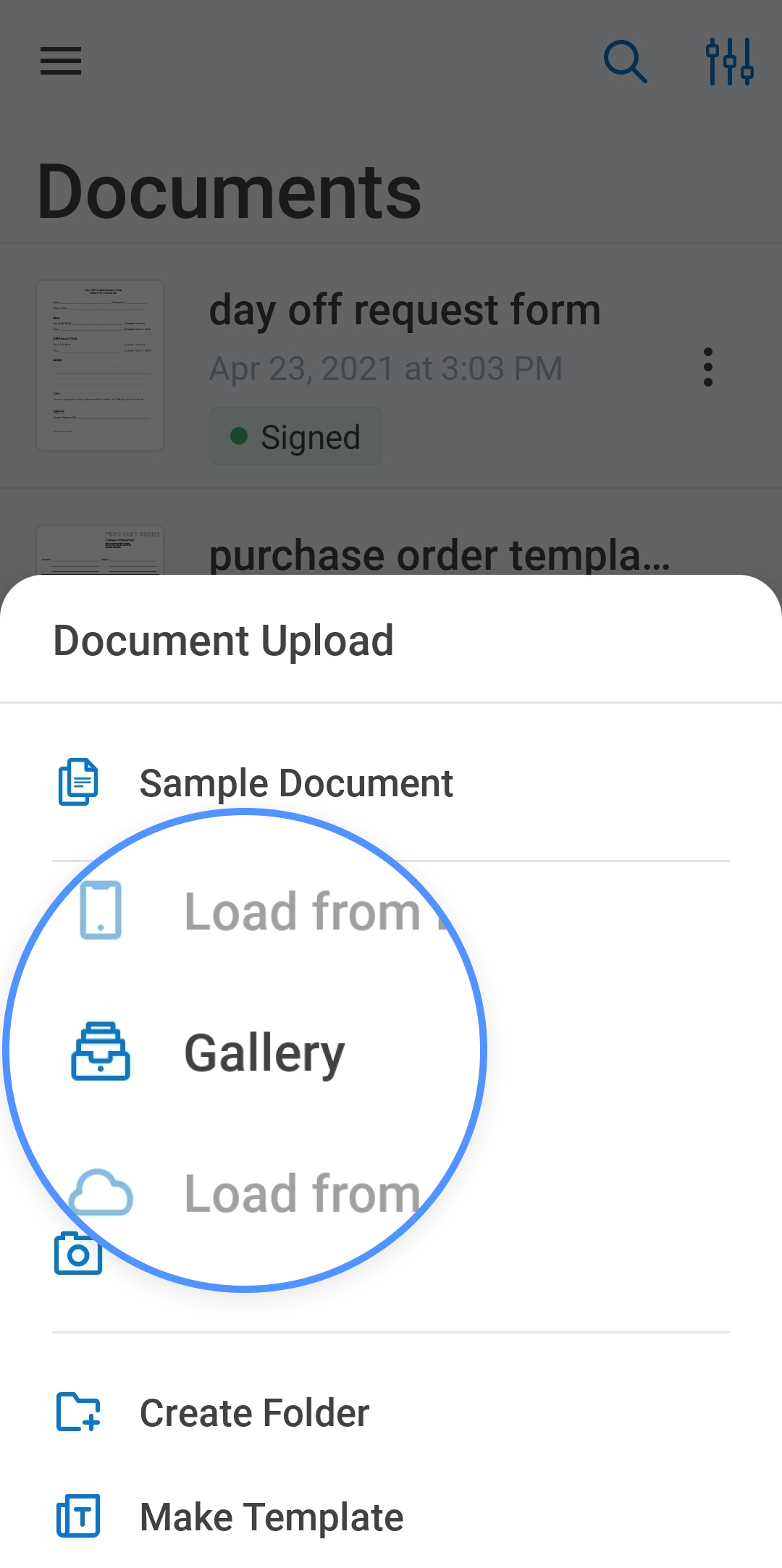
illustration-guidée-remplissage

Éditez et enregistrez des images de documents en quelques secondes

Après avoir sélectionné la photo dont vous avez besoin, elle s’ouvrira dans l’éditeur airSlate SignNow. Vous pouvez y ajouter des annotations et des champs remplissables en utilisant les outils en bas de l’écran.

Une fois terminé, appuyez sur l’icône de coche en haut à droite de l’écran pour enregistrer le document.
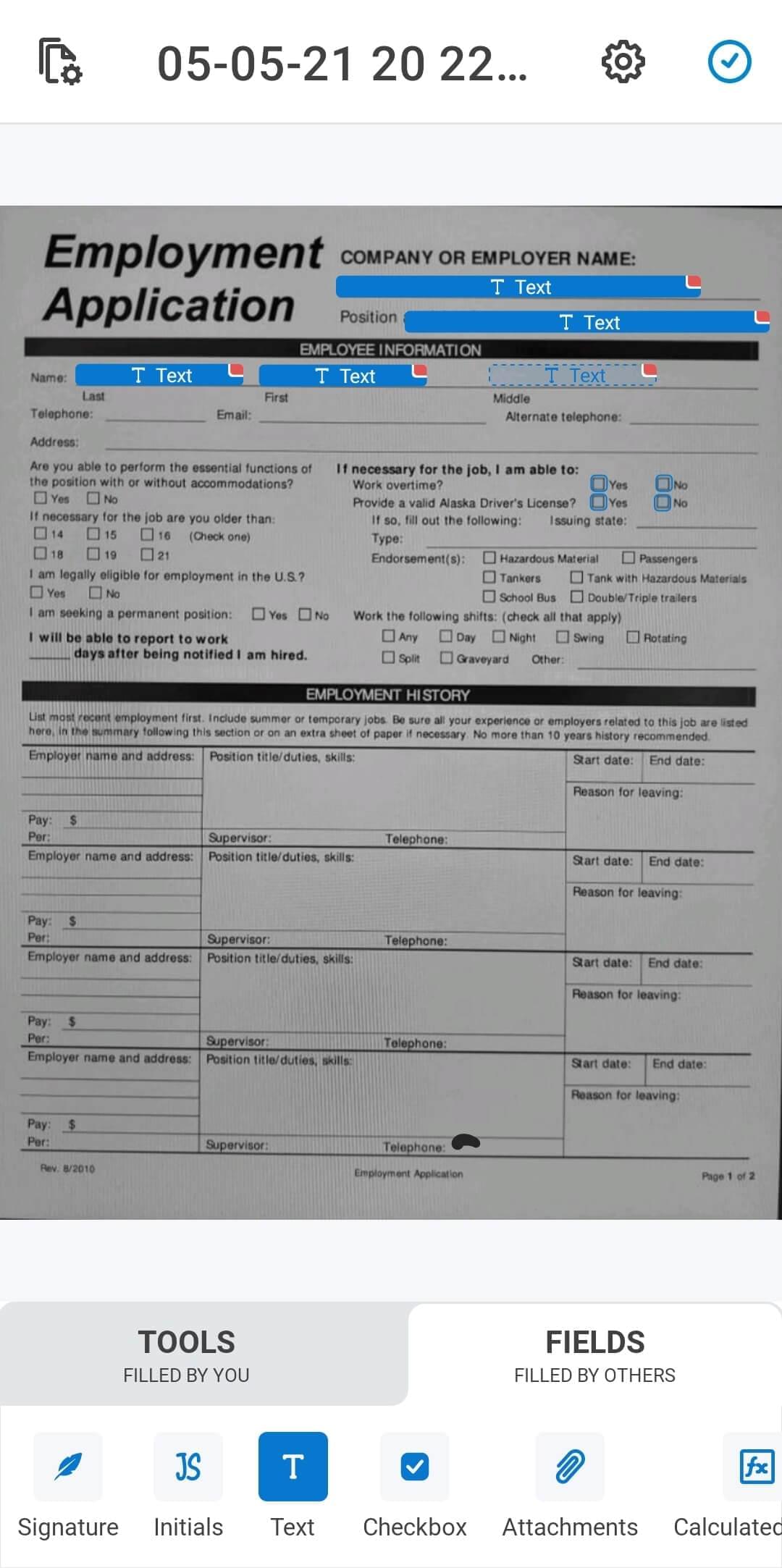
illustration-guidée-remplissage

Entrez le titre de votre document dans la fenêtre contextuelle et cliquez sur Enregistrer.
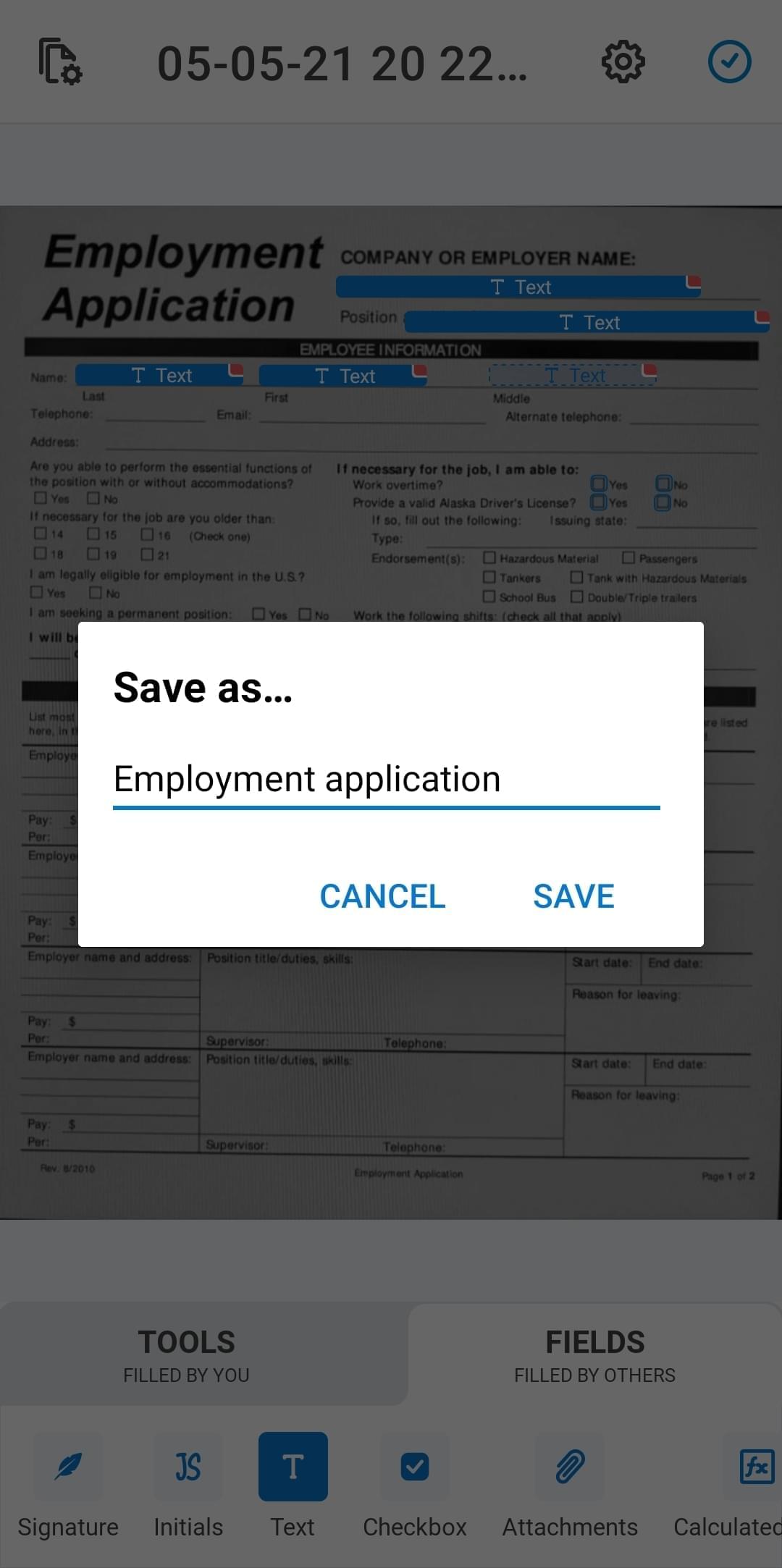
illustration-guidée-remplissage

Le document que vous venez de télécharger depuis votre galerie apparaîtra tout en haut de votre liste de « récents », dans le dossier Documents.


walmart logo
exonMobil logo
apple logo
comcast logo
facebook logo
FedEx logo
être prêt à en obtenir plus

Obtenez dès maintenant des signatures juridiquement contraignantes !