
A Word document can be signed entirely on screen: with a scanned image of a handwritten signature, Word’s built-in Signature line, a certificate-based digital signature, or a dedicated eSignature platform. None of these require a printer, a scanner, or a trip to the mailbox.
Most people reach for this question at an inconvenient moment: a contract, a form, or an agreement arrives as a .docx file and needs a signature now, not after a print-sign-scan round trip. This guide covers both paths: Word’s own tools, and a platform built to accept the format directly, since SignNow’s Word integration takes a .docx file as-is rather than asking the reader to convert it first. Think of it the way you’d sign a birthday card, except the card lives on a screen and the signature attaches to the file instead of the paper.
- Word has three native signing options: an inserted image of a handwritten signature, a Signature Line, and a certificate-based digital signature.
- None of the native options creates a built-in audit trail of who signed, when, or from where.
- In the U.S., an electronic signature on a Word document is enforceable under the ESIGN Act and UETA once both parties agree to sign electronically.
- A dedicated eSignature platform adds multi-signer routing and an audit trail that native Word does not provide.
- Editing a Word document after it carries a native signature line commonly breaks or invalidates that signature.
- Word for Mac does not support the same certificate-based signing flow as Word for Windows.
- Sending a .docx file for signature does not require converting it to PDF first.
What counts as an electronic signature in a Word document
An electronic signature is any electronic mark that shows intent to sign: a typed name, an inserted image of a handwritten signature, or a clicked confirmation inside a signing tool. A digital signature is a narrower, specific type of electronic signature backed by a digital certificate that cryptographically ties the signature to both the signer’s identity and the exact document content.
Word supports both categories, through different features. Typing a name at the bottom of a document or pasting in a scanned signature image produces a simple electronic signature: fast, but with no built-in proof of who applied it or whether the file changed afterward. Word’s certificate-based option produces something closer to a true digital signature, provided the signer already holds a certificate. The distinction matters because it determines how much weight the signature carries if a document is ever disputed, which is the subject of the next section.
Most day-to-day signing, whether on a Word document or elsewhere, falls into the first category. Drawing, typing, or uploading an image of a signature, whichever method a signer uses, is what most people mean when they talk about creating an electronic signature.
The stakes attached to a document usually decide which category is worth using. An internal memo or a low-value approval rarely needs more than a typed name or a pasted signature image. A lease, a settlement agreement, or a document tied to a regulated process benefits from a signature method that can survive a dispute, the kind of need reflected in SignNow’s industry solutions for legal, healthcare, and real estate teams, which is where the legal and evidentiary questions in the next section become relevant.
Electronic signatures on Word documents are enforceable, and adoption keeps climbing
In the United States, an electronic signature on a Word document is legally enforceable under the ESIGN Act, the federal law passed in 2000, and the Uniform Electronic Transactions Act (UETA), adopted at the state level in 47 states, according to Fortune Business Insights. Both laws establish that an electronic signature carries the same legal weight as a handwritten one, as long as both parties have agreed to transact electronically. In the European Union, the equivalent framework is eIDAS, which defines three tiers of electronic signature (simple, advanced, and qualified) with increasing evidentiary weight. Readers in regulated industries such as life sciences should also be aware of 21 CFR Part 11, the FDA rule governing electronic records and signatures for validated workflows.
The legal footing behind electronic signatures has helped drive broad adoption. The global digital signature market was valued at USD 6.9 billion in 2025 and is projected to reach USD 121.0 billion by 2033, a compound annual growth rate of 43.9 percent, according to Grand View Research, with North America holding 32.3 percent of the market in 2025.

A 2025 legal technology survey found that 78% of law firms use e-signature software as part of their technology stack, reflecting how electronic signing has become standard practice for document workflows. Platforms built for this purpose typically carry their own compliance documentation alongside that legal backing; SignNow’s compliance certifications list ESIGN and UETA support alongside SOC 2 Type II and HIPAA.
Native Word signing methods you already have
Word offers three built-in ways to add a signature without printing: an inserted image of a handwritten signature, a Signature Line, and, on Windows, a certificate-based digital signature.
Insert a scanned or handwritten signature image
- Write a signature on a piece of paper.
- Scan the page and save it as a .bmp, .jpg, or .png file.
- Open the image file in Word, select it, and use Crop on the Picture Format tab to trim it to size.
- Right-click the cropped image and choose Save as Picture to keep it as a reusable file.
- In the target document, place the cursor where the signature belongs and select Insert > Pictures to add it.
Insert a Signature Line
- Click the spot in the document where the line should appear.
- Select Insert > Signature Line.
- Choose Microsoft Office Signature Line.
- In the Signature Setup box, enter the signer’s name and, if needed, their title.
- Select OK. A signature line with an X appears where the cursor was placed.
Add a certificate-based digital signature (Windows only)
This option produces the closest native equivalent to a true digital signature, but it depends on the signer already owning a digital certificate, either issued internally or purchased from a certificate authority. Word for Mac does not support the same signature-line and certificate-based signing flow as Word for Windows, a limitation worth checking before assuming a Mac-based recipient can complete this step the same way.
| Method | Setup effort | Audit trail |
| Inserted signature image | Low (needs a scanner or phone camera once) | None |
| Signature Line | Low to medium (built into Word) | None |
| Certificate-based digital signature | Medium to high (requires a certificate) | Partial (certificate validity only) |
Any of these three methods works for a quick internal approval. That is often enough for low-stakes documents, but it leaves a gap that SignNow’s Word integration is built to close for documents that need to hold up outside a single file on a single computer.
Why native Word signatures fall short for business-critical documents
None of Word’s native signing methods produces an audit trail. There is no built-in record of who signed, when, or from where, and no automatic notice if the document changes after the signature was added.
That gap shows up in three ways. First, there is no timestamped log of the signing action itself, only the visible signature or line in the document. Second, detecting a post-signature edit means manually comparing file versions, since Word does not flag the change on its own (outside of the narrow case where a certificate-based signature is invalidated by any edit). Third, coordinating more than one signer typically means emailing the file back and forth, with no shared view of who has completed their part.
A platform-level audit trail addresses all three by logging full names, email addresses, IP addresses, and timestamps for every action taken on a document, from opening it to completing the signature. Certinal reports that 55 percent of companies attribute a measurable reduction in compliance risk to automating their signature workflows this way, rather than relying on email attachments and manual filing.
“SignNow has changed our workflows to be more streamlined and efficient. We saved more than 1500 pieces of paper converting to an electronic format.” — Nicholas Tovar, SHRM-CP
How to sign a Word document electronically without printing it using SignNow
Uploading a .docx, adding a signature on screen, and finishing without ever opening a printer dialog is the outcome this section walks through.
- Upload the document. From the SignNow dashboard, upload the Word file directly from a computer or from a connected cloud folder, import via URL, or add from Forms Library.
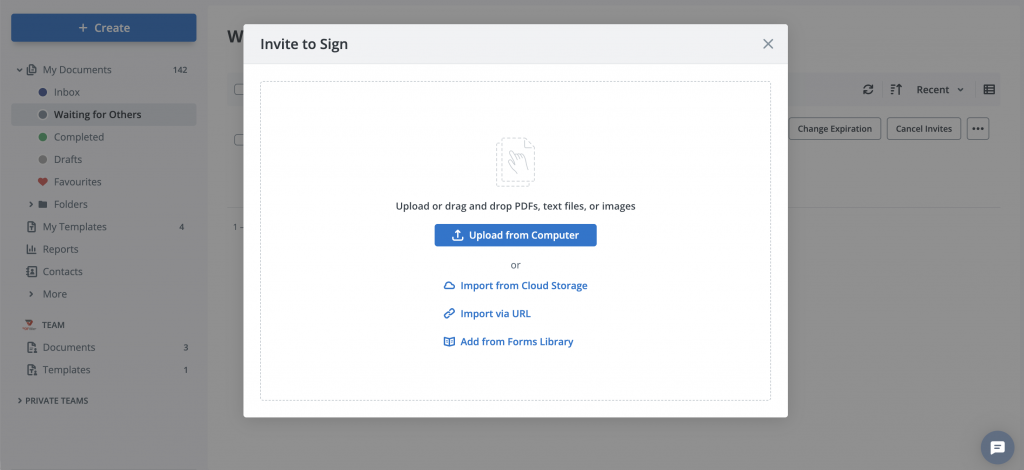
- Let the file open in the online editor. The document loads in SignNow’s browser-based editor, where the rest of the process happens without leaving the page.
- Select My Signature. Choose to draw the signature with a mouse or touchscreen, type a name in a signature-style font, or upload an image of a handwritten signature.
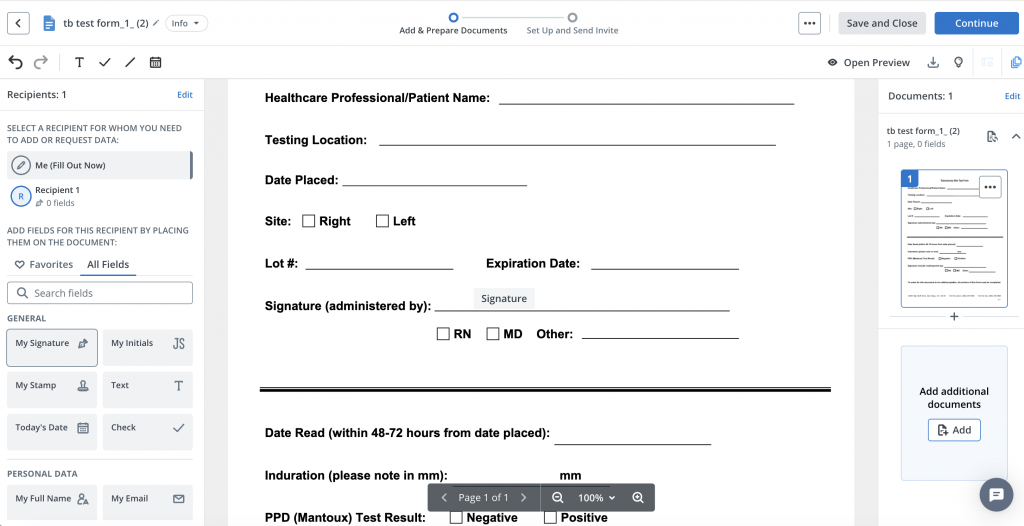
- Add any other fields the document needs. If the document also needs a date or initials next to the signature, SignNow’s fillable fields add those in the same pass, so nothing has to be typed in loosely by hand.
- Select Done, then download or store the completed file. The finished document can be downloaded as a signed copy or kept in the account for later reference.
The same flow works from SignNow’s mobile app when the document arrives on a phone instead of a laptop, which matters for anyone who needs to sign something between meetings rather than at a desk.
How to send a Word document to someone else for their signature
Sending a Word document for someone else to sign uses the same upload step, but adds recipient fields and an invite instead of a personal signature.
- Upload the document, the same way as signing it personally.
- Add a Signature Field and assign it to a recipient. In the Fields panel, drag a Signature Field onto the document and enter the recipient’s email address.
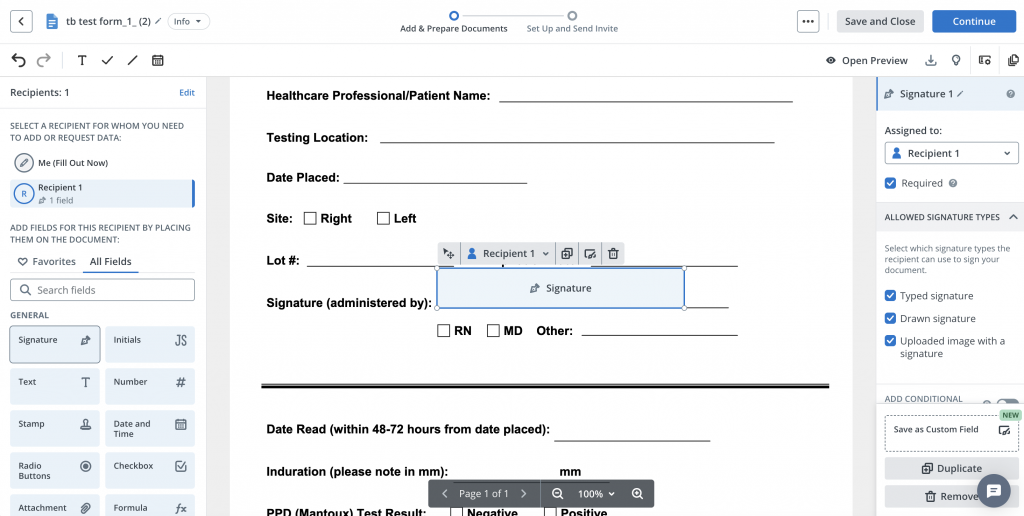
- Add fields for additional signers, if needed. SignNow supports assigning a document to multiple signers in a single invite, each completing their own field, using Add multiple signers rather than sending separate copies.
- Send the invite. Each recipient gets a link to open and complete their portion of the document.
- Track completion status. The sender can see who has signed and who has not, without emailing to ask.
A small real-estate brokerage sending a signed listing agreement to both a client and a co-signer at the same time is a common version of this scenario, the kind of workflow covered under SignNow’s real estate solutions: over 65 percent of real-estate transactions, including listing agreements, purchase contracts, and lease documentation, now use eSignatures, according to Certinal. For a brokerage or any team that sends the same agreement to many recipients over time, the Business Premium plan ($15 per user per month, billed annually) adds bulk send, letting one template go out to a list of recipients instead of one at a time. A smaller team that only sends a handful of agreements a month has less need for that tier and can rely on the standard invite-and-track flow described above without extra cost.
Common problems when signing Word documents electronically
Most problems come from editing a document after it carries a native signature, mixing up Mac and Windows features, or treating an image-based signature as more secure than it actually is.
Issue: The signature line or inserted image shifts or disappears after further edits. Word treats both as ordinary document content rather than a locked element, so adding a paragraph above a signature can push it out of place or off the page entirely. Finalize all other edits before adding the signature, or use a platform that separates the signed record from the editable source so the two never collide.
Issue: A certificate-based signature shows as invalid after a small edit. Any change to the document content breaks the certificate’s cryptographic binding to that exact file. Re-sign after making edits, or route the document through a platform where the signed version is fixed once completed.
Issue: A signature line added on Word for Mac behaves differently than expected. Mac Word lacks the same certificate-based signing flow available on Windows. For internal approvals on a Mac, an inserted image or Signature Line still works; anything needing a certificate-level guarantee should move to a dedicated platform instead.
Issue: Several signers, several email threads, and no way to tell who has signed. Native Word has no shared status view across copies of the same file. A platform that shows real-time completion status to everyone with access removes the guesswork, and saving the field layout as a reusable template avoids rebuilding it for every new signer.
Issue: A scanned signature image gets copied onto a document the signer never saw. An image file carries no link to a specific document, so it can be pasted anywhere by anyone who has access to it. This is the core weakness of image-based signing rather than a bug to fix, and it is the main reason a certificate-based signature or a platform-level signature, both of which tie the mark to a specific document instance, carry more weight when a signature might later be challenged.
Disclaimer: The information contained in this blog post is provided for general informational purposes only and does not constitute formal legal advice.
Final thoughts
Signing a Word document electronically should not require printing, scanning, converting files, or managing multiple email attachments. Microsoft Word’s built-in signing options can work for simple internal approvals, but they offer limited tracking and become difficult to manage when several people need to sign.
SignNow provides a more complete workflow. You can upload a Word document directly, add signature and date fields, invite one or multiple recipients, monitor signing progress, and keep a timestamped record of document activity. Signers can complete the process from a computer or mobile device without installing additional software.
Ready to simplify your document signing process? Start your SignNow free trial and send your first Word document for electronic signature today.
Glossary
- Advanced Electronic Signature (AES): an electronic signature tier, used in eIDAS and reflected in some U.S. platform designs, that ties a signature to the signer through means unique to that signer and detects any later change to the signed data.
- Audit trail: a timestamped record of every action taken on a document, typically including names, email addresses, IP addresses, and the time of each action, used to establish who signed and when.
- Digital signature: an electronic signature backed by a digital certificate, using cryptography to bind the signature to both the signer’s identity and the exact content of the signed document.
- ESIGN Act: the Electronic Signatures in Global and National Commerce Act, the U.S. federal law passed in 2000 that gives electronic signatures the same legal standing as handwritten ones in interstate and foreign commerce.
- Signature Line: a built-in Word feature (Insert > Signature Line) that places a visual line and an X in a document to mark where a signature belongs, either as a plain placeholder or paired with a certificate-based digital signature.
FAQ
1. How do I insert my signature into a Word document?
Scan or photograph a handwritten signature, save it as an image file, and insert it through Insert > Pictures at the point in the document where it belongs. Word also offers a built-in Signature Line under Insert > Signature Line for a visual placeholder instead of a full image.
2. Is an electronic signature in Word legally binding?
Yes, in the U.S., provided both signing parties have agreed to transact electronically, under the ESIGN Act and UETA. The strength of that signature as evidence still depends on which method was used: an inserted image carries less evidentiary weight than a certificate-based digital signature.
3. Can you sign a Word document on your phone?
Yes. Word’s own mobile apps support inserting a saved signature image, and dedicated eSignature platforms typically offer a mobile app that opens the document, applies a drawn or typed signature, and completes the process from a phone screen. This matters most for anyone who receives a document to sign while away from a desk, since the alternative is waiting until a computer is available.
4. How do you sign a Word document without printing it?
Use one of Word’s native options (an inserted image, a Signature Line, or a certificate-based signature) directly on the file, or upload the document to an eSignature platform that opens .docx files, applies a signature on screen, and returns a completed copy.
5. What’s the difference between an e-signature and a digital signature?
An electronic signature is any electronic mark showing intent to sign, including a typed name or an inserted image. A digital signature is a specific type of electronic signature backed by a digital certificate that cryptographically binds the signature to the signer’s identity and the exact document content.
6. Can I send a Word document to someone else to sign electronically?
Yes. A .docx file can be uploaded to an eSignature platform, assigned a Signature Field tied to a recipient’s email address, and sent as an invite, with no need to convert the file to PDF first. Most platforms, including a SignNow free trial, let a sender test this on a real document before committing to a paid plan.
Sources
- Insert a signature in a Word document, Microsoft Support
- Digital Signature Market Report, Grand View Research, 2026
- Digital Signature Market Report, Fortune Business Insights
- eSignature statistics report, Certinal
- Electronic Signatures in Global and National Commerce Act, Public Law 106-229
- 21 CFR Part 11, Electronic Records and Electronic Signatures, eCFR
- 2025 Legal Industry Report, TechB2BSolutions
- What counts as an electronic signature in a Word document
- Electronic signatures on Word documents are enforceable, and adoption keeps climbing
- Native Word signing methods you already have
- Why native Word signatures fall short for business-critical documents
- How to sign a Word document electronically without printing it using SignNow
- How to send a Word document to someone else for their signature
- Common problems when signing Word documents electronically
- Final thoughts