How to make a PDF fillable: 3 methods for Acrobat, free tools, and SignNow

To make a PDF fillable, open it in a form editor, place interactive form fields (text fields, check boxes, radio buttons, dropdown menus, signature boxes) where answers belong, and save the file. Recipients can then type directly into the document on a computer, tablet, or smartphone instead of printing it, writing by hand, and scanning it back.
Think of a paper form as a printed page with blank lines. A fillable PDF puts a small typing box on each of those lines, so the person completing it never needs a pen. This guide covers three ways to add those boxes: Adobe Acrobat, free tools that run in a browser or on your computer, and SignNow, which also collects signatures and attachments once the form is built. It extends our earlier walkthrough on creating fillable PDFs in SignNow with a side-by-side look at every option.
TL;DR
- A fillable PDF contains interactive form fields; a flat or scanned PDF does not, even if it looks like a form.
- Adobe Acrobat’s Prepare a form tool detects fields automatically, but it requires a paid plan. The free Acrobat Reader fills forms and cannot build them.
- Free tools such as PDF24, Sejda, PDFescape, and LibreOffice create fillable PDF forms at no cost, with page, file-size, or task limits on the online versions.
- Saving a Word document with form controls as a PDF removes the fields, so the result is not fillable.
- SignNow adds fillable fields, signature fields with roles, required and conditional settings, and attachment requests, then sends the form by invite or a shareable signing link.
- Test every form on a phone before sending: Zuko Analytics found mobile users complete forms at 47.5%, compared with 55.5% on desktop.
Which method should you use?
The right method depends on what happens after the form is filled. If you only need a document people can type into and download, Acrobat or a free tool is enough. If you need the completed form returned with a legally binding signature, an eSignature platform removes the email back-and-forth.
| Method | Cost | Best for | Field types | Signatures and sharing |
| Adobe Acrobat (Standard or Pro) | US$14.99 or US$19.99 per month on an annual plan, billed monthly | Teams already licensed for Acrobat; complex forms with calculations and validation | Text, check boxes, radio buttons, dropdowns, buttons, signature fields | Signature fields; sharing by file or Adobe link |
| Free tools (PDF24, Sejda, PDFescape, LibreOffice) | Free, with limits on some online tools | One-off forms, tight budgets, offline work | Text, check boxes, radio buttons, dropdowns, list boxes, signature boxes (varies by tool) | Download and email the file; Sejda offers a shareable link |
| SignNow | Business plan from $8 per user per month, billed annually; 7-day free trial | Forms that must come back completed and signed | Text, Checkbox, Date/Time, Initials, Radio Button, Dropdown, Calculated, Signature, Attachment and more | Invite to Sign, signing links, roles, reminders, audit trail |
Acrobat prices come from Adobe’s plan comparison page, checked in September 2026. SignNow pricing is listed on the SignNow plans and pricing page, and every paid plan includes unlimited users.
What makes a PDF fillable
A PDF becomes fillable when it contains interactive form fields, technically called AcroForm fields, that store typed or selected values. The page underneath can look identical to a paper form; the fields are a separate layer on top of it.
Common form field types include:
- Text fields for names, addresses, and free-form answers (single line or multi-line)
- Check boxes for yes/no or select-all-that-apply choices
- Radio buttons for one choice from a group, such as a payment method
- Dropdown menus and list boxes for picking from a fixed set of options
- Date fields that enforce a date format
- Signature fields where a recipient signs electronically
- Calculated fields that add, subtract, multiply, or divide values from other fields
Three document types are often confused. A flat or scanned PDF is an image of text: you can view and print it, but not fill it. A fillable PDF has form fields, and recipients complete only those fields. An editable PDF lets someone change the underlying text and images, which requires a PDF editor rather than a form filler. When people say they “can’t type in a PDF”, the file is almost always flat.
Method 1: How to make a PDF fillable in Adobe Acrobat
Adobe Acrobat converts an existing PDF, Word file, Excel sheet, or scanned paper form into a fillable form with its Prepare a form tool. When you open a document in that tool, Acrobat scans the layout and, according to Adobe’s fillable PDF guide, automatically detects static form lines and boxes and turns them into interactive fields.
Who it’s for: anyone with an Acrobat Standard or Pro subscription. Adobe lists “Create, fill out, sign, and send forms” for both paid plans, while the free Acrobat Reader is limited to opening, viewing, and filling PDFs.
When to use it: when you already pay for Acrobat or need calculations and data validation rules on fields.
Where: the Acrobat desktop app on Windows or macOS.
How to create a fillable PDF form in Acrobat
- Open Acrobat and go to All tools, then select Prepare a form. In the Windows layout Alamo Colleges documents, the path is Tools > Forms & Signatures > Prepare Form.
- Choose the file you want to convert: a PDF, a Word or Excel file, or a scanned paper form.
- If the form needs a signature, check This document requires signatures. Acrobat adds the fields it detects.
- Add any missing fields from the form toolbar or Form components panel: text field, check box, radio button, dropdown, button, or signature field. Click on the page where each field should appear.
- Double-click a field to open its properties. Give it a clear name, enable Multi-line for long answers, and add validation rules where needed.
- Review the field order in the fields list and drag fields to fix the tab sequence.
- Click Preview to test the form, then Save to your computer or Adobe cloud storage.
A step-by-step Prepare a form tutorial from Alamo Colleges shows the same flow for both Windows and Mac interfaces.
Auto-detection works best on clean, digitally created files. On a skewed or low-resolution scan, Acrobat may miss fields or place them off the lines, so plan to adjust positions by hand. If recipients open the form in the free Reader and can’t save their answers, the author can enable fill-and-save rights for Acrobat Reader users in Acrobat, an option Adobe documents in its forms help.
Method 2: How to make a PDF fillable for free
Several free tools create fillable PDF forms without an Acrobat license. Browser tools need no installation and run on any computer with a web browser, but they upload your file to a third-party server. Desktop software keeps files on your computer.
| Tool | Where it runs | Free limits | File retention |
| PDF24 | Browser; PDF24 Creator desktop app for Windows | No stated limits; ad-supported, no registration | Deleted from PDF24 servers after one hour |
| Sejda | Browser | 50 MB, 50 pages, 3 tasks per hour | Deleted after 2 hours |
| PDFescape Online | Browser | 10 MB and 100 pages (free account) | Not stated on the limits page |
| LibreOffice | Desktop (Windows, macOS, Linux) | None | Files stay on your computer |
Limits come from each vendor’s page, accessed in September 2026: PDF24 form creator, Sejda PDF forms, and the PDFescape file limits article.
PDF24
PDF24 supports single-line and multi-line text fields, check boxes, radio buttons, dropdown lists, list boxes, action buttons, and signature fields.
- Open the PDF24 “Create fillable PDF form” tool in your browser.
- Drop in your PDF.
- Select a field type from the toolbar and draw it on the page.
- Adjust size, position, and properties for each field.
- Save and download the fillable PDF.
Sejda and PDFescape
Sejda offers text fields, text areas, radio buttons, check boxes, dropdowns, and signature boxes, plus a publish option that creates a link others can fill and sign. The free plan’s three-tasks-per-hour cap is the main constraint for anyone building several forms in a row. PDFescape runs in the browser, and its free account handles documents up to 10 MB and 100 pages; paid memberships raise that to 40 MB and 1,000 pages.
LibreOffice for offline form building
LibreOffice is free office software that exports forms as fillable PDFs, which makes it a good fit for sensitive documents you would rather not upload. The steps below follow a LibreOffice PDF form tutorial.
- Build the form layout in LibreOffice Writer (or open your content there).
- Go to View > Toolbars and enable Form Controls and Form Design.
- Add a Text Box, Check Box, List Box, or Option Button from the Form Controls toolbar. For a radio group, give every option button the same Group name in its properties.
- Click Design Mode to switch it off and test the controls.
- Choose File > Export As > Export as PDF, check Create PDF form, set Submit format to PDF, and export.
Why a Word document export is not a fillable PDF
Microsoft Word can build forms with content controls: rich text, plain text, picture, combo box, drop-down list, date picker, and check box, as described in Microsoft’s Word forms guide. Those controls work while the file stays a .docx. When you export the doc to PDF, the controls turn into static text and boxes.
A Microsoft Q&A answer on fillable PDFs puts it directly: conversion to PDF “will remove that functionality,” regardless of how the conversion is performed. The practical fix is to use Word for layout, export a flat PDF, and then add fields with Acrobat, a free tool, or SignNow. SignNow also accepts Word (DOCX) files directly, which skips the export step.
Method 3: How to make a PDF fillable with SignNow
SignNow turns an uploaded PDF or Word document into a fillable form and handles what comes next: assigning fields to specific signers, marking answers as required, requesting supporting files, and sending the form for signature. Fillable fields, templates, and mobile apps are included in the Business plan; the more advanced options are noted in each step below.
Why it matters: a fillable PDF sent by email still depends on the recipient saving the file correctly and sending it back. With SignNow fillable fields, the completed and signed document returns to your account with a court-admissible audit trail.
Build the form
- Log in to your SignNow account or register one. New accounts get a 7-day SignNow free trial with no credit card required.
- Click the +Create button at the top of your screen and upload the PDF or Word file you want to make fillable.
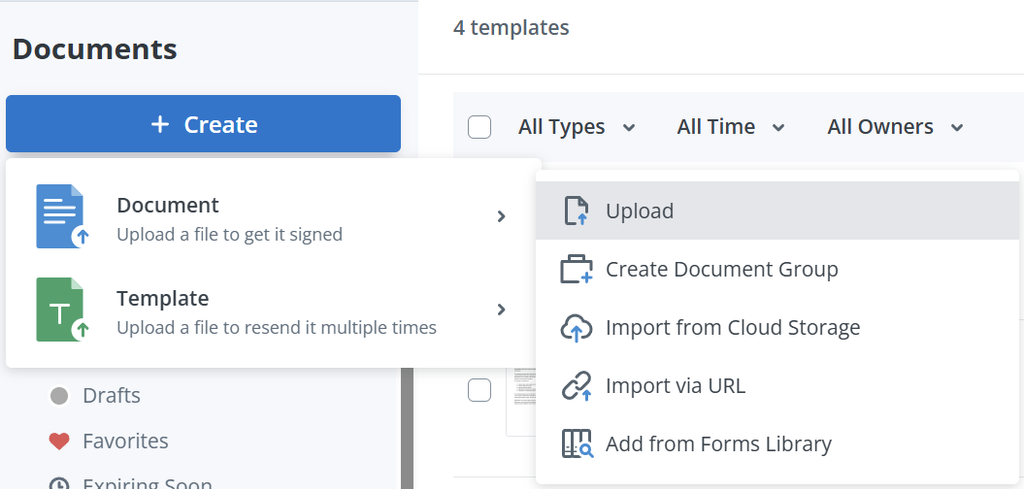
- Open your document and find the Tools menu on the left.
- Add fillable fields such as Text, Checkbox, Date/Time, Initials, Radio Button, Calculated, and more. Click the field type, then drop it where it should appear on the page. Dropdown fields in SignNow work the same way and limit answers to a preset list.
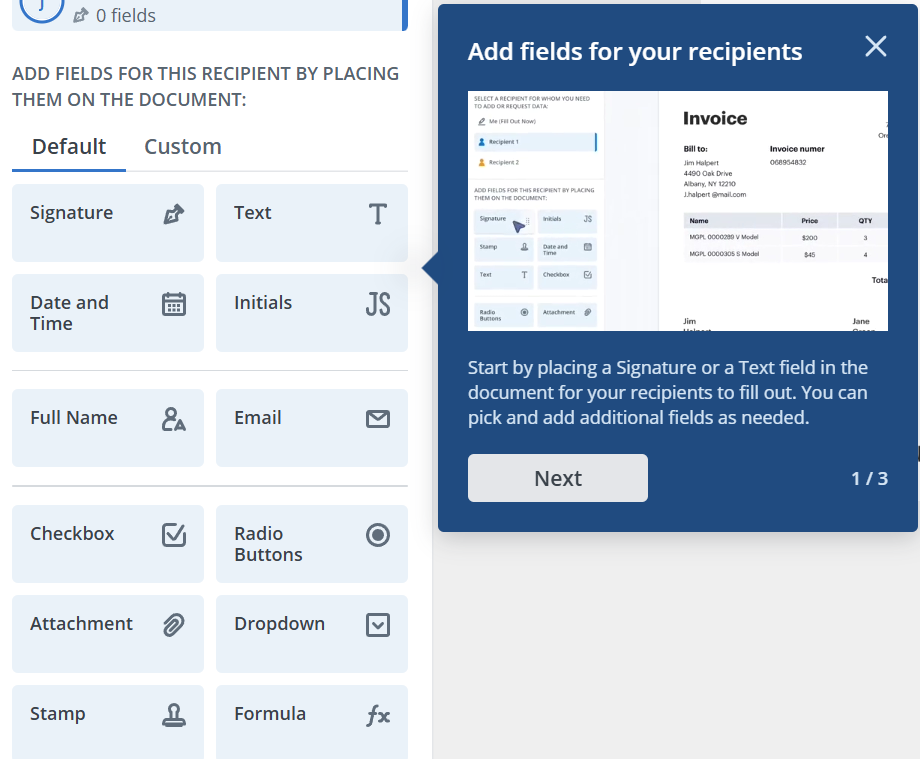
- Select a field and set it as Required so the recipient cannot finish without completing it. Use the toolbar on the right for additional settings, such as field names, validation, or default values.
Calculated fields and conditional fields, which show or hide a field based on another answer, are part of the Enterprise plan ($30 per user per month, billed annually). The calculated fields feature adds, subtracts, multiplies, or divides values across fields, which is useful for order forms and expense reports.
Add signatures and attachment requests
Insert as many Signature fields as you need by dragging and dropping them onto the page. Click each one to assign a role (for example, Employee and Manager), and use the Signature menu on the right to make it required or conditional.
To collect supporting files such as an ID or a certificate, add a Request Attachment field from the left-hand menu. Make it required or optional, or set conditions for when the signer sees it. Signer attachment requests are available on the Enterprise plan.
Click Save and Close to finish editing the document.
Nicholas Tovar, SHRM-CP, described the result this way:
“SignNow has changed our workflows to be more streamlined and efficient. We saved more than 1500 pieces of paper converting to an electronic format.”
Choose how to share the document. Click Invite to Sign to send it to specific recipients by email, or click Create Signing Link to get a URL you can post on your website or share with users.
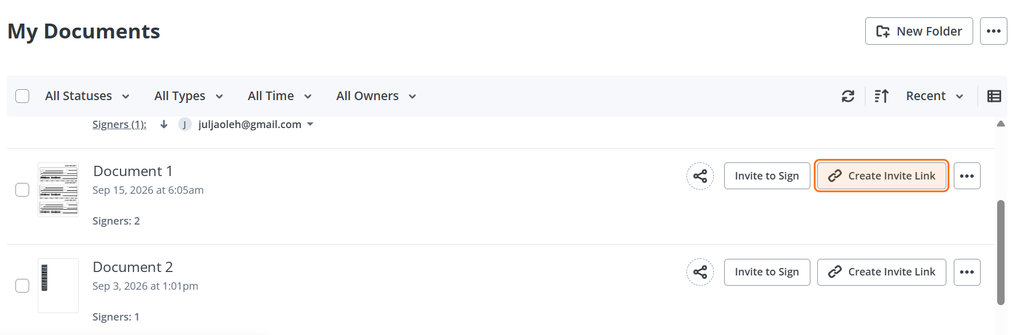
A SignNow signing link works well for public-facing forms such as registrations or applications, because anyone with the URL can complete and sign. Invite to Sign fits documents meant for named people, with a custom signing order and automatic reminders. If you send the same form often, save it as one of your reusable SignNow templates so the fields, roles, and settings carry over to every new copy.
For recurring needs, a few related features are worth knowing:
- Bulk send (Business Premium, $15 per user per month billed annually) sends one form to many recipients, each getting a separate copy; the SignNow bulk send feature page covers setup.
- Kiosk mode (Business Premium) lets people complete forms in person on a shared tablet; the SignNow kiosk mode page explains how it works.
- Integrations with Google Drive, Dropbox, Box, Salesforce, and 270+ other apps let you import documents and store completed files where your team already works. The SignNow integrations directory lists them by category.
Make sure the form works on mobile devices
A fillable form has to work on a phone as well as on a computer. Zuko Analytics’ 2025 benchmarking of 93,022,997 form sessions found an overall completion rate of 51.71%, with a clear gap between devices.
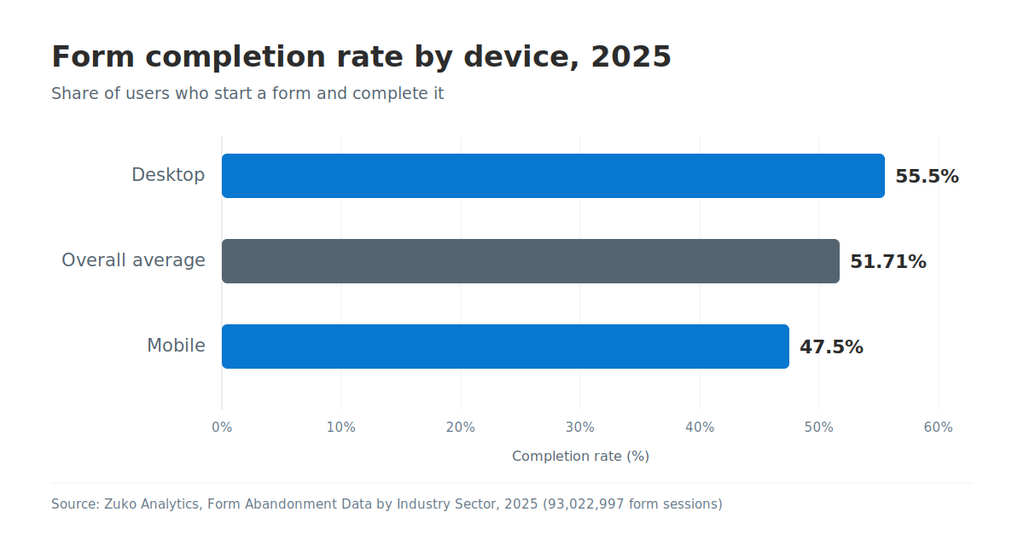
According to Zuko’s industry benchmarking data, desktop users complete forms at 55.5% and mobile users at 47.5%. An eight-point gap is a strong reason to design fields for small screens from the start.
A few habits narrow the gap:
- Make text fields tall enough to tap without zooming, and avoid packing check boxes close together.
- Replace long text answers with radio buttons or dropdowns where the options are known.
- Preview the form at phone width before sending. The SignNow editor offers a preview of the signing experience on desktop and mobile layouts.
- Send the form through a service with native apps. SignNow mobile apps for iOS and Android hold ratings of 4.7 on the App Store and 4.6 on Google Play, and responsive signing also works in a mobile browser.
Fillable form scenarios by industry
Fillable PDFs show up wherever the same questions get asked repeatedly. Three common setups:
HR onboarding. An HR coordinator turns a new-hire packet into one fillable form: text fields for personal details, a dropdown for department, radio buttons for tax filing status, and signature fields for the employee and manager roles. A required attachment field collects a copy of the employee’s ID. Saving it as a template means each new hire gets a fresh copy with every field in place.
Healthcare intake. A therapy practice replaces a clipboard intake packet with a fillable consent and history form sent before the first appointment. Zuko’s data puts healthcare form completion at 44.37%, so trimming optional fields matters. SignNow offers HIPAA compliance for eSignatures through a Business Associate Agreement, available as an add-on to the Site License plan.
Real estate and property. A property manager sends rental applications through a signing link posted on the listing page. Property had the lowest completion rate in Zuko’s 2025 data at 34.55%, which makes short forms with clear required fields especially valuable here. Calculated fields can total deposits and fees automatically on Enterprise plans.
Common problems and how to fix them
You can’t type in the PDF. The file has no form fields; it’s flat or scanned. Open it in Acrobat’s Prepare a form tool, a free form builder, or SignNow and add fields.
Fields weren’t detected on a scanned form. Auto-detection relies on clear lines and boxes. Rescan at a higher resolution with the page straight, or place fields manually. Adding fields by hand is usually faster than fixing a poor scan.
The fields disappeared after exporting from Word. Word’s PDF export flattens content controls. Export a flat PDF, then add fields in a PDF form tool, or upload the DOCX file to SignNow directly.
The Tab key jumps around the form. Tab order often follows the order fields were created rather than their position on the page. Reorder fields in Acrobat’s fields list, or delete and re-add fields in reading order in simpler tools.
Recipients can fill the form but can’t save their answers. Some viewers restrict saving on forms that lack fill-and-save rights. Enable those rights for Reader users in Acrobat, or send the form through an eSignature service where answers are stored in the account instead of on the recipient’s device.
Nobody returns the completed form. Email attachments get lost. Send the form with Invite to Sign so recipients get automatic reminders and you can track status, or set a document expiration date to create a clear deadline.
Design tips for accessible forms that are quick to complete
Accessible forms are faster for everyone to complete, and they matter for public-sector and education documents. WebAIM’s accessible PDF forms guidance sets out several rules:
- Give every field a tooltip that matches its visible label, since screen readers announce the tooltip.
- Keep the tab order in the same sequence as the visual layout.
- Give radio buttons in a group the same field name, and set each choice value to match its visible label.
Other practical habits:
- Name fields by purpose (“Employee_Last_Name”, not “Text12”). It helps with data export and conditional rules later.
- Mark only truly necessary fields as required. Every required field is another reason to abandon the form.
- Group related fields visually and keep labels outside the input box so they stay visible after someone types.
- If you work with U.S. federal agencies, note that federal guidance on Section 508 accessible PDFs asks agencies to prioritize HTML and use PDFs only when necessary.
When a form collects signatures as well as data, the ESIGN Act provides that a signature or contract may not be denied legal effect solely because it is in electronic form. SignNow complies with ESIGN and UETA and holds SOC 2 Type II certification, with details on the SignNow security and compliance page.
Final thoughts
It’s easy to switch from paper documents to fillable, electronic documents.
Fillable PDFs boost productivity, are environmentally friendly, ensure data security and compliance, and significantly shorten the document completion cycle. Using fillable PDFs is an economically sound choice that can greatly benefit small businesses and enterprises alike.
With features like editable fields, dropdown menus, checkboxes, and electronic signature fields, SignNow is an ideal tool for transforming any document into a fillable PDF. The best part: users can get started on their fillable PDFs for free, so stop putting off filling out that gargantuan form, try SignNow for free today, and turn your documents into interactive forms that are easy to complete.
Glossary
- Fillable PDF: A PDF document containing interactive fields where users can enter information without changing the underlying content.
- AcroForm: The standard PDF technology used to create interactive form fields.
- Form field: An interactive element, such as a text box, checkbox, dropdown menu, or signature field, used to collect information.
- Field validation: Rules that help ensure entered information follows a specified format or meets defined requirements.
- Conditional field: A field that appears or becomes required based on a recipient’s previous answer.
- Calculated field: A field that automatically performs calculations using values entered into other fields.
- Flattened PDF: A PDF in which interactive form fields have been merged into the document’s content and are no longer editable as fields.
- Signing link: A shareable URL that allows recipients to open, complete, and electronically sign a document.
FAQ
How do I make a PDF fillable for free?
Use a free form builder such as PDF24, Sejda, or PDFescape in your browser, or LibreOffice on your computer. Upload or open the PDF, add text fields, check boxes, and other form fields, then save. Online tools cap file size, pages, or tasks per hour on their free tiers, and SignNow’s 7-day free trial covers fillable fields and signatures.
Can I make a PDF fillable without Adobe Acrobat?
Yes. Free Acrobat Reader cannot create forms, but PDF24, Sejda, PDFescape, LibreOffice, and eSignature platforms such as SignNow all add fillable fields. The main differences are field variety, free-tier limits, and whether the tool can collect signatures.
How do I turn a Word document into a fillable PDF?
Export the Word document as a regular PDF, then add form fields with a PDF form tool. Word’s own form controls are removed during PDF conversion, so the exported file will not be fillable on its own. SignNow accepts DOCX uploads directly and adds fields on top.
Can a scanned PDF be made fillable?
Yes. Acrobat’s Prepare a form tool runs field detection on scans, and any form tool lets you place fields manually on top of the scanned image. A straight, high-resolution scan gives the best detection results.
Can people fill out a fillable PDF on a phone?
Most mobile PDF viewers support form fields, but small fields and dense layouts slow people down. Sending the form through an app with responsive signing, such as SignNow on iOS, Android, or a mobile browser, makes completion on smartphones and tablets more reliable.
What’s the difference between a fillable PDF and an editable PDF?
A fillable PDF lets recipients enter information only in designated form fields. An editable PDF lets someone change the document’s text, images, and layout. Most forms should be fillable, not editable, so the content stays fixed.
Sources
- Compare Acrobat plans, Adobe, 2026
- Create a form in Word that users can complete or print, Microsoft Support
- How do I convert a Word document to a fillable PDF?, Microsoft Q&A
- Form Abandonment Data by Industry Sector, Zuko Analytics, 2025
- PDF Accessibility: Accessible Forms in Acrobat, WebAIM
- Create fillable PDF form, PDF24 Tools
- 15 U.S. Code § 7001, General rule of validity, Legal Information Institute
Watch the video below to learn how to add fillable fields to a document:
- TL;DR
- Which method should you use?
- What makes a PDF fillable
- Method 1: How to make a PDF fillable in Adobe Acrobat
- Method 2: How to make a PDF fillable for free
- Method 3: How to make a PDF fillable with SignNow
- Make sure the form works on mobile devices
- Fillable form scenarios by industry
- Common problems and how to fix them
- Design tips for accessible forms that are quick to complete
- Final thoughts
- Glossary
- FAQ
- Sources