Named fields
Consistent machine-readable identifiers for reliable data mapping across templates and systems.





Using custom placeholders streamlines template management by separating document layout from variable data, making bulk sends and integrations more reliable while reducing signer errors and administrative workload.

A Template Administrator designs and maintains template libraries, enforces naming conventions for placeholders, and coordinates with legal and IT to ensure placeholders align with compliance and data mapping requirements across the organization.
An Integration Engineer connects placeholders to external systems via API or middleware, maps data fields from CRMs and document generators, and validates that prefills and merges work across environments and deployment stages.
Template administrators, operations teams, and developers commonly create and manage placeholders to support repeatable signing workflows.
Organizations benefit most when roles and naming standards are defined so placeholders remain reliable and auditable.
Consistent machine-readable identifiers for reliable data mapping across templates and systems.
Type and format checks to enforce correct input such as numeric ranges or date formats.
Show or hide placeholders based on prior inputs to simplify signer experience and reduce errors.
Endpoints that allow external systems to push data into placeholders before sending.
Track changes and maintain backward compatibility when placeholders are renamed or removed.
Apply placeholder-driven templates to multiple recipients in batch sends for scale.
Integrate placeholders with Google Docs content to convert collaborative drafts into templates, preserving placeholder names and positions for later mapping and batch sends from the eSignature platform.
Map CRM fields to placeholders so customer data populates documents automatically at send time, reducing manual copy-paste and improving data consistency across agreements.
Connect Dropbox or other cloud storage to store completed documents and to populate templates from stored assets, enabling centralized document retention and backup.
Use document generation tools to output finalized documents with placeholders filled from template variables, supporting complex contracts and variable clauses.
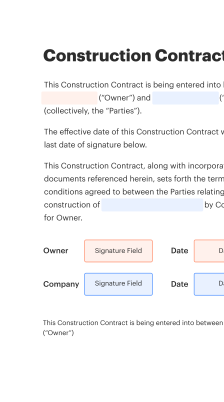
| Setting Name | Configuration |
|---|---|
| Placeholder naming convention | snake_case |
| Reminder frequency | 48 hours |
| Prefill validation | Enabled |
| Template version control | Enabled |
| Bulk send batch size | 500 recipients |
Ensure device and browser compatibility before relying on placeholders for critical workflows.
Mobile and desktop apps provide consistent placeholder rendering, but test across endpoints to confirm field alignment and API connectivity for prefills.
Hospitals standardize consent documents with placeholders for patient name and treatment details
Resulting in faster intake and clearer audit trails for HIPAA compliance
A sales team uses placeholders in proposal templates to accept pricing and term variables
Leading to shorter sales cycles and fewer post-signature amendments
| Feature | signNow (Recommended) | DocuSign |
|---|---|---|
| Bulk Send support | ||
| API placeholder mapping | REST endpoints | REST endpoints |
| HIPAA-ready options | ||
| Template versioning |
| Plan | signNow (Recommended) | DocuSign | Adobe Sign | HelloSign | PandaDoc |
|---|---|---|---|---|---|
| Entry monthly price | From $8/user/month | From $10/user/month | From $9.99/user/month | From $13/user/month | From $19/user/month |
| API access included | Available on Business | Available on API plans | Available on business plans | Available on business plans | Available on business plans |
| Bulk send capability | Included | Add-on or higher tier | Included in business tier | Included in higher tiers | Included |
| Single sign-on (SSO) | Available on enterprise | Available on enterprise | Available on enterprise | Available on enterprise | Available on enterprise |
| Free trial | Trial available | Trial available | Trial available | Trial available | Trial available |
Create, execute, and manage workflows of any complexity, electronically from virtually anywhere. Scalable eSignature capabilities allow you to share documents with the right people in the correct order and define roles for each recipient. Execute document workflows faster and easier than ever before.
Optimize complex signing processes with airSlate SignNow’s powerful features to enhance your business. Control your automated eSignature workflows to ensure they're running at peak performance with instant notifications and reminders.
Bring teams together in a secure, shared environment. Manage documents, use form templates and notifications to create more efficient cross-organization collaboration. Free your employees from having to spend time on repetitive activities so that they can focus on valuable, business-critical tasks.
Run your projects with industry-leading integration. Collect Salesforce, Microsoft Teams, and SharePoint all in one business flow. Connect your software to a single system for endless possibilities and more productiveness.
Feel confident knowing that your data remains secure by the most recent in encryption security. airSlate SignNow is GDPR and eIDAS compliant and provides you transparence into your eSigning procedure with court-admissible audit trails. Set up user access permissions and rights to control who has access to what.